 Get Palette Grid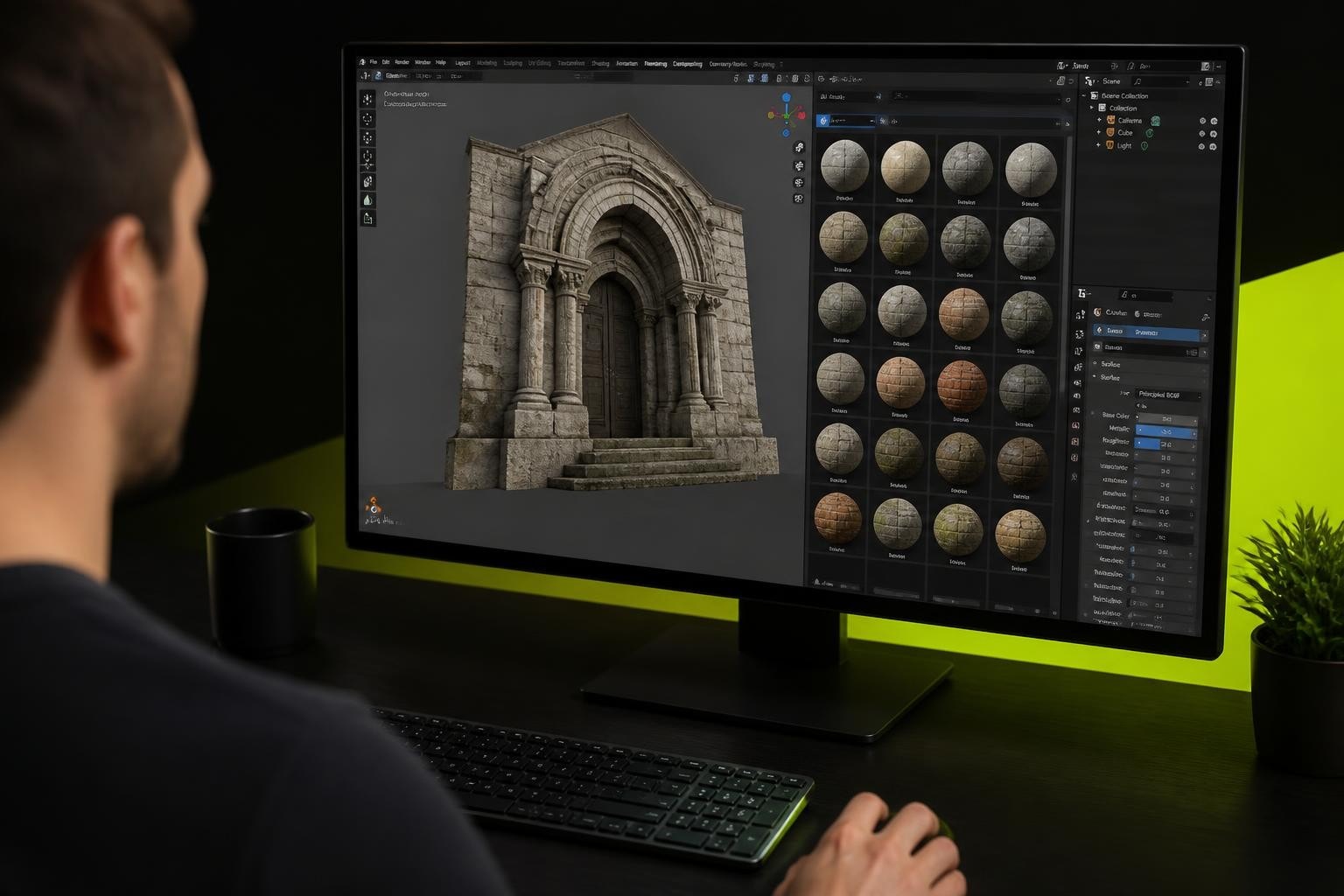
The Poliigon Blender addon has become an essential tool for 3D artists and game developers who need high-quality, production-ready materials without leaving their workspace. This integration bridges the gap between Poliigon's extensive library of physically-based rendering (PBR) textures and Blender's powerful modeling environment, eliminating the manual download-import-setup workflow that once consumed hours of production time. For professionals working under tight deadlines, this addon represents a shift from asset management busywork to actual creative work.
Understanding the Poliigon Blender Addon
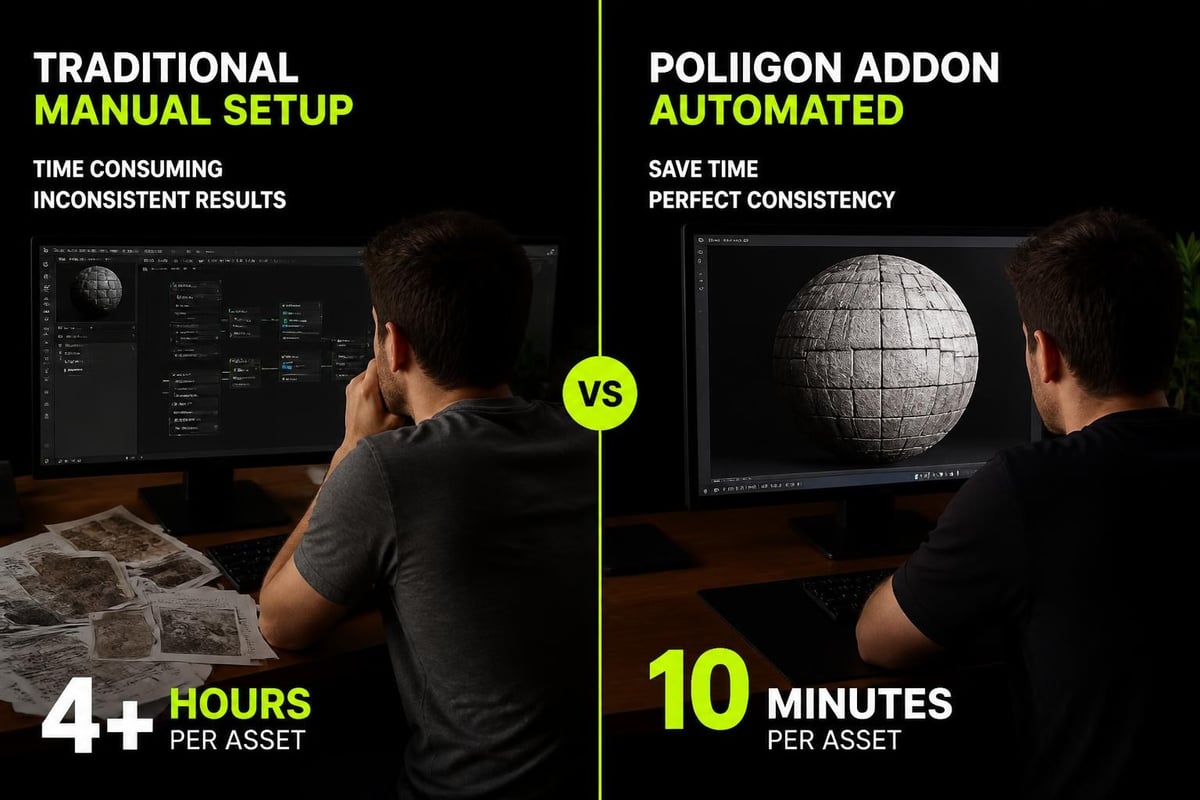
The poliigon blender addon functions as a direct pipeline between Poliigon's asset library and your Blender project. Rather than navigating a website, downloading zip files, extracting textures, and manually configuring shader nodes, the addon provides an in-application browser that handles the entire process through a streamlined interface.
Core Functionality and Asset Access
The addon connects to your Poliigon account and displays available assets based on your subscription tier or purchased content. Materials, HDRIs, models, and brushes become searchable within Blender's interface, with preview thumbnails that update based on your search filters.
When you select an asset, the addon manages:
- Automatic download to your local cache directory
- Node graph construction with proper connections for base color, roughness, normal maps, and displacement
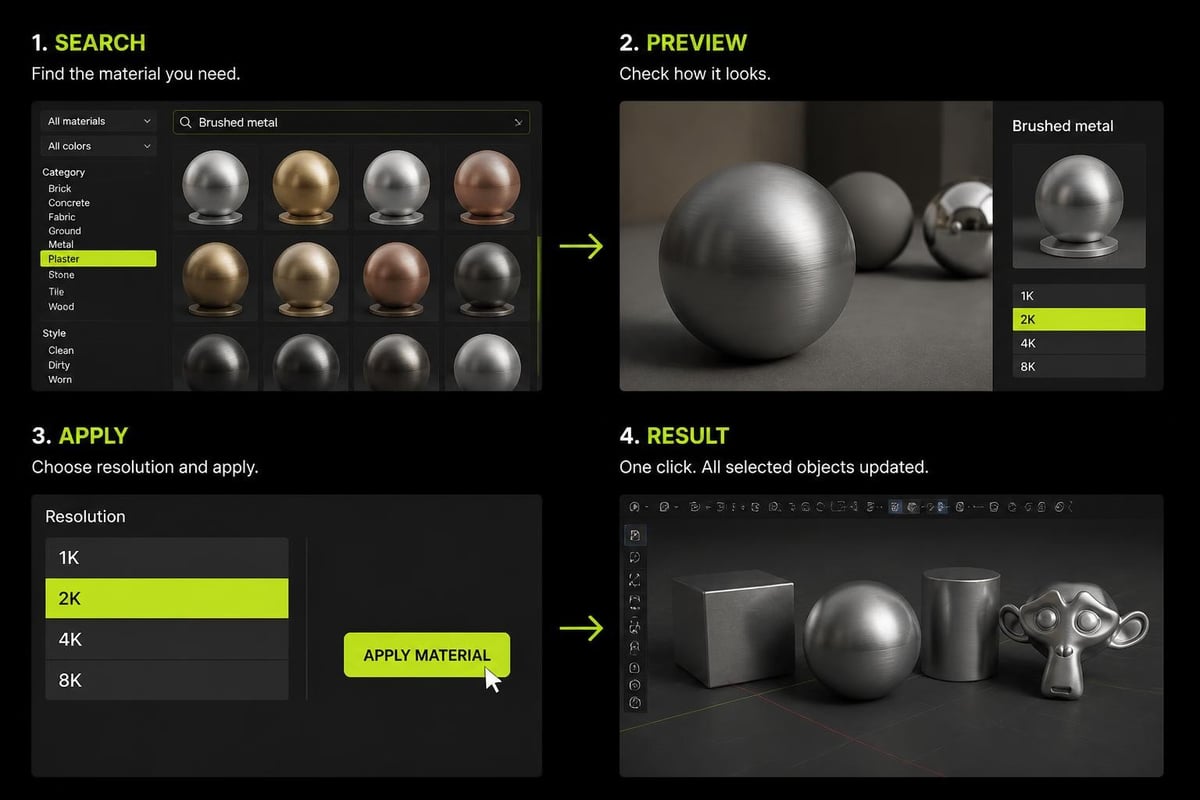
- Resolution selection based on your needs (1K, 2K, 4K, 8K, or 16K where available)
- UV mapping awareness that adapts to your mesh configuration
- Material linking that references downloaded textures without duplication
This automation eliminates the repetitive technical setup that characterizes traditional texture workflows. For game developers working on multiple assets, the time savings compound quickly across a production pipeline.
Installation and Initial Configuration
Setting up the poliigon blender addon requires a current Blender installation and an active Poliigon account. Download the latest version of Blender to ensure compatibility with the addon's current release.
Step-by-Step Installation Process
- Download the addon file from your Poliigon account dashboard (typically a .zip file)
- Open Blender preferences through Edit > Preferences
- Navigate to Add-ons in the left sidebar
- Click "Install" and select the downloaded .zip file
- Enable the addon by checking the box next to "Poliigon Addon for Blender"
- Enter your credentials in the addon preferences panel
The comprehensive installation guide from Poliigon covers platform-specific variations and troubleshooting for common installation issues. After enabling, the addon appears in Blender's N-panel (toggle with the N key in the 3D viewport).
Authentication and Library Access
Once installed, the poliigon blender addon requires authentication to access your asset library. Enter your Poliigon email and password in the addon panel. The system maintains this connection across Blender sessions, automatically refreshing your available assets as your subscription updates or new purchases complete.
| Configuration Option | Purpose | Recommended Setting |
|---|---|---|
| Cache Directory | Local storage for downloaded assets | SSD location with 50GB+ free space |
| Default Resolution | Auto-selected texture size | 2K for game assets, 4K for renders |
| Auto-apply to Selection | Apply materials immediately on import | Enabled for speed |
| Thumbnail Quality | Preview image resolution | Medium for balance |
Workflow Integration for Production Assets
The poliigon blender addon excels in production scenarios where material quality and iteration speed both matter. Game developers benefit from the instant access to optimized PBR materials that work correctly under real-time lighting conditions.
Material Application Strategies
Selecting an object in your scene and clicking a material in the addon browser applies that material with fully-configured nodes. The addon creates proper shader setups that match industry-standard PBR workflows, connecting texture maps to the Principled BSDF node in technically correct configurations.
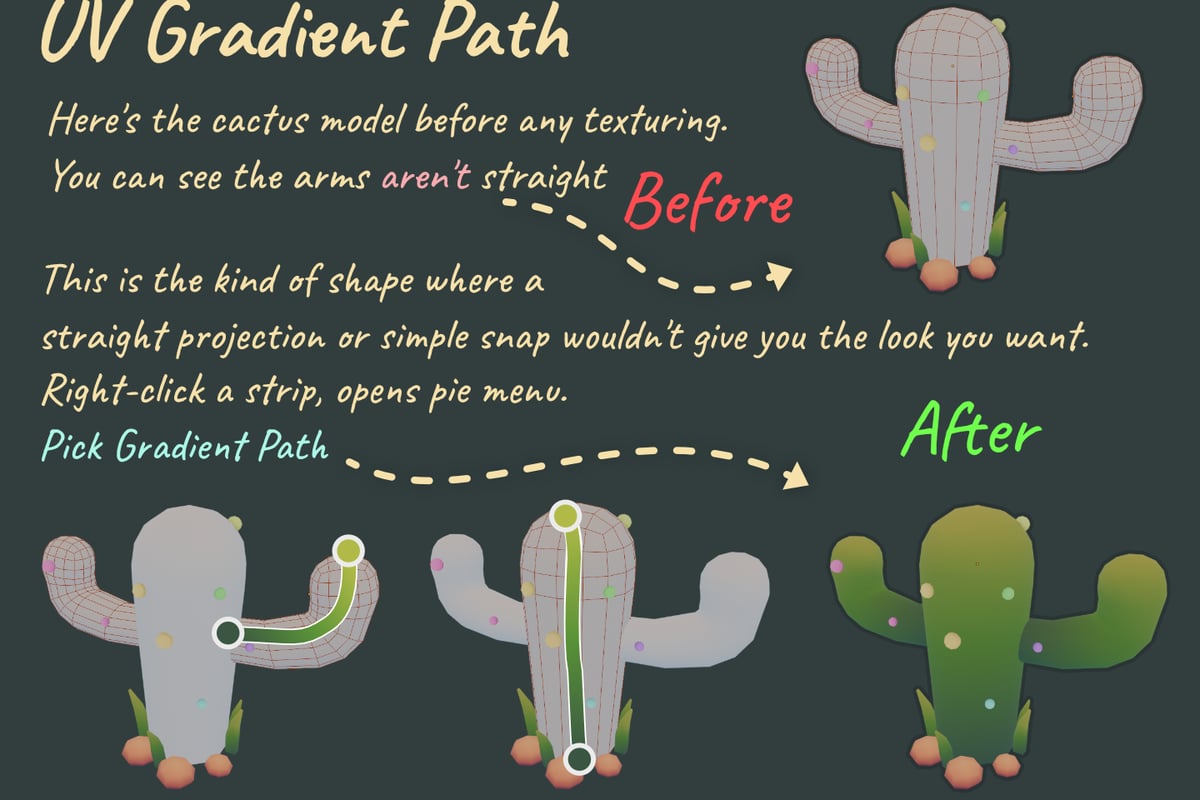
For stylized work that requires base materials before artistic modification, this provides a solid technical foundation. Artists working on gradient texturing workflows can use Poliigon materials as reference for roughness variation and normal detail before simplifying to palette-based approaches.
Performance Considerations for Game Assets
Game development requires balancing visual fidelity with performance constraints. The poliigon blender addon's resolution options support this balance by allowing per-asset quality choices.
Resolution selection guidelines:
- 1K textures for distant objects, mobile platforms, or memory-constrained scenarios
- 2K textures for primary game assets viewed at medium distance
- 4K textures for hero assets, close-up interactions, or desktop platforms
- 8K+ textures for cinematic renders or source material for texture atlases and trim sheets
The addon downloads only the selected resolution, preventing unnecessary storage consumption. For teams working on reducing draw calls and texture memory, starting with high-quality Poliigon materials and then optimizing down maintains visual quality through the reduction process.
Advanced Features and Customization
Beyond basic material application, the poliigon blender addon includes features that accelerate specific production tasks common in professional 3D workflows.
HDRI and Environment Setup
Environment lighting directly impacts how materials render in both real-time and offline engines. The addon provides access to Poliigon's HDRI library with the same one-click application system used for materials.
Selecting an HDRI from the addon browser automatically:
- Creates a world shader node setup
- Connects the environment texture with proper color space
- Configures rotation controls for lighting direction
- Sets appropriate strength values for the scene
This eliminates the manual world shader configuration that typically requires understanding Blender's shader editor conventions. For game developers previewing assets before export, quickly switching between different lighting environments validates material appearance under varied conditions.
Model and Brush Integration
The poliigon blender addon extends beyond textures to include downloadable models and brush assets. Models import with materials pre-applied, functioning as background elements, reference objects, or kit-bash components.
| Asset Type | Use Case | Production Value |
|---|---|---|
| Materials | Primary surface texturing | High - daily use for most projects |
| HDRIs | Environment and lighting setup | Medium - per-scene configuration |
| Models | Background detail, reference | Medium - project-dependent |
| Brushes | Sculpting detail and patterns | Low - specialized workflows only |
For studios building asset libraries, the addon's local caching system stores downloaded content for offline access. This supports distributed teams where some artists work without consistent internet connectivity.
Practical Tips from Production Experience
Working with the poliigon blender addon in real game development and 3D production reveals optimization strategies that documentation often overlooks.
Cache Management and Storage
The addon stores downloaded assets in a cache directory that grows with usage. A single 4K material set (base color, roughness, normal, displacement, AO) consumes 200-400MB. After downloading 50 materials, cache size exceeds 10GB easily.
Cache optimization strategies:
- Set cache location on an SSD for faster material loading
- Periodically review and remove unused materials through the addon's cache manager
- For distributed teams, share a network cache directory to prevent redundant downloads
- Back up frequently-used materials separately from the cache to prevent re-download if cache clears
Material Editing After Import
Poliigon materials import as standard Blender node setups, making them fully editable. Artists can modify color tints, adjust roughness intensity, or remove displacement nodes for performance without breaking the material.
For stylized workflows, using Poliigon realistic materials as reference during blocking provides visual quality targets. Artists can then build simplified versions that match the lighting characteristics while reducing texture count. Palette Grid offers a complementary approach for stylized artists who want the simplified texturing workflow from the start, creating gradient palette textures directly in Blender without the full PBR complexity that Poliigon materials provide.
Search and Filtering Efficiency
The addon's search functionality supports both text queries and categorical filters. Combining these narrows results faster than browsing categories alone.
Effective search patterns include:
- Material type + descriptor: "wood oak" or "concrete rough"
- Category + color: "fabric blue" or "metal rusted"
- Use case keywords: "ground", "wall", "floor" for architectural context
Creating a naming convention for downloaded materials in your Blender files helps when the poliigon blender addon connection is unavailable. Prefix material names with "PLG_" to identify Poliigon sources in complex scenes with mixed asset origins.
Troubleshooting Common Issues
Even with streamlined installation, certain configuration conflicts or network issues can disrupt the poliigon blender addon workflow.
Connection and Authentication Problems
If the addon fails to display your library after login, verify network connectivity and firewall settings. Some corporate or institutional networks block the API endpoints the addon uses for library queries.
Common fixes:
- Log out and log back in through the addon preferences
- Check that Blender has network access permissions in system security settings
- Verify your Poliigon subscription status on the website
- Update to the latest addon version from your account dashboard
Material Display and Node Issues
Materials that import but display incorrectly typically indicate color space mismatches or missing texture files. The addon defaults to sRGB for color maps and Non-Color for data maps (normal, roughness, displacement), which matches Blender's expected configuration.
If materials appear too bright, too dark, or with incorrect normal mapping:
- Open the Shading workspace to inspect node connections
- Verify image texture nodes have correct color space settings
- Check that normal map nodes use "Tangent Space" mode
- Confirm displacement is connected properly if enabled
For artists working on texture and UV mapping workflows, the addon's automatic UV awareness means it scales materials based on existing UV layouts. Meshes without UV maps receive automatic smart UV projection, which may not align with production requirements.
Comparing Alternative Asset Workflows
The poliigon blender addon exists within an ecosystem of asset management solutions. Understanding how it compares to alternatives clarifies when to use each approach.
Addon-Based Asset Libraries
Several addons provide similar in-application asset browsing. BlenderKit offers a broader community-driven library with free and paid content, while Poliigon focuses exclusively on curated, professionally-created PBR materials.
| Feature | Poliigon Addon | BlenderKit | Manual Workflow |
|---|---|---|---|
| Asset Quality | High - professional scan-based | Variable - community submissions | Depends on source |
| Cost Model | Subscription or per-asset | Freemium with paid premium | Pay per asset from various sources |
| Installation | Single addon | Single addon | No installation |
| Learning Curve | Low | Low | Medium - requires node knowledge |
| Offline Use | Yes (cached assets) | Limited | Yes (downloaded files) |
For game developers who also need character rigging and animation assets, Mixamo integration complements material-focused addons by addressing different pipeline stages.
When Manual Workflows Make Sense
Despite automation advantages, certain scenarios benefit from traditional texture management. Custom procedural materials, proprietary asset libraries, or highly specific artistic requirements may not align with Poliigon's library content.
Artists building unique color palette systems or working within strict art direction constraints often need granular control that preset materials can't provide. The poliigon blender addon works best as a foundation layer that artists then customize to project needs.
Integration with Broader Production Pipelines
Professional 3D production extends beyond Blender into game engines, rendering farms, and collaborative workflows. The poliigon blender addon fits into these larger systems with varying degrees of friction.
Game Engine Export Considerations
Materials created by the poliigon blender addon use standard PBR texture inputs that map cleanly to Unity, Unreal Engine, and Godot material systems. The textures themselves export alongside your FBX or glTF files, maintaining visual consistency between Blender preview and engine runtime.
Export checklist for Poliigon materials:
- Ensure all texture image files save relative to the .blend file
- Pack textures into the .blend if sharing files across workstations
- Verify normal map format matches target engine (OpenGL vs DirectX conventions)
- Reduce texture resolution for engine import if desktop-only assets exceed mobile requirements
For artists creating low-poly game assets, Poliigon materials provide reference quality during modeling and can be simplified post-export. Starting with realistic materials helps validate lighting and proportions before optimizing down to performance targets.
Team Collaboration and Asset Sharing
Studios using the poliigon blender addon across multiple artists benefit from centralized cache management and consistent material naming. When team members share .blend files, materials reference the same cached textures if all artists use the addon with matching account access.
Without the addon, materials appear as missing texture references. Teams solve this through:
- Shared network cache location accessible to all artists
- Material libraries that bundle commonly-used Poliigon setups
- Asset baking that converts Poliigon materials to custom textures before sharing
- Documentation specifying which materials came from Poliigon for future reference
Projects requiring version control with Git or Perforce face challenges with large texture files. The poliigon blender addon's cache-based approach keeps .blend files small, storing textures separately from scene data.
Performance Optimization for Viewport and Render
High-resolution PBR materials impact both viewport interactivity and final render times. The poliigon blender addon provides tools to balance quality against performance during different production stages.
Viewport Display Settings
Blender's material preview and rendered viewport modes load full-resolution textures by default, which can slow navigation in complex scenes. The addon respects Blender's simplify settings, allowing temporary resolution reduction during modeling and layout phases.
Viewport optimization workflow:
- Work in solid shading mode during blocking and modeling
- Switch to material preview when evaluating surface quality
- Use rendered view only for lighting validation
- Enable simplify in render properties to reduce viewport texture resolution
- Disable displacement during modeling if not needed for silhouette
For scenes with dozens of Poliigon materials, consider using the addon's preview-quality thumbnails during selection rather than loading full materials until final asset choices are confirmed.
Render Time Considerations
Displacement maps from Poliigon materials add geometric detail that improves realism but increases render time substantially. Game developers rarely need true displacement since normal maps provide similar visual results at a fraction of the computational cost.
The addon allows disabling displacement during material import through preferences. For production rendering where displacement matters, using adaptive subdivision and microdisplacement in Cycles produces better results than traditional subdivision modifiers with displacement textures.
The Poliigon Blender addon accelerates the material application process for 3D artists who value both quality and efficiency in production workflows. By eliminating manual texture setup and providing instant access to professionally-created PBR content, it frees artists to focus on creative decisions rather than technical busywork. For game developers and 3D generalists building custom tools and workflows, Saved Pixel offers addons born from real production challenges, including tools for gradient palette texturing and retopology that complement asset-focused solutions like Poliigon's platform.