Guide · · 14 min read · By Rayen Bahri, Saved Pixel
Why Your Low-Poly Colors Look Bland: 6 Palette Fixes Tested in Blender
TL;DR: Low-poly scenes rarely look bland because of the models. They look bland because every color was picked on its own. Here are six palette fixes, each shown on the same Blender scene with only the palette image changed, the numbers behind each one, and a free .blend to test them yourself.
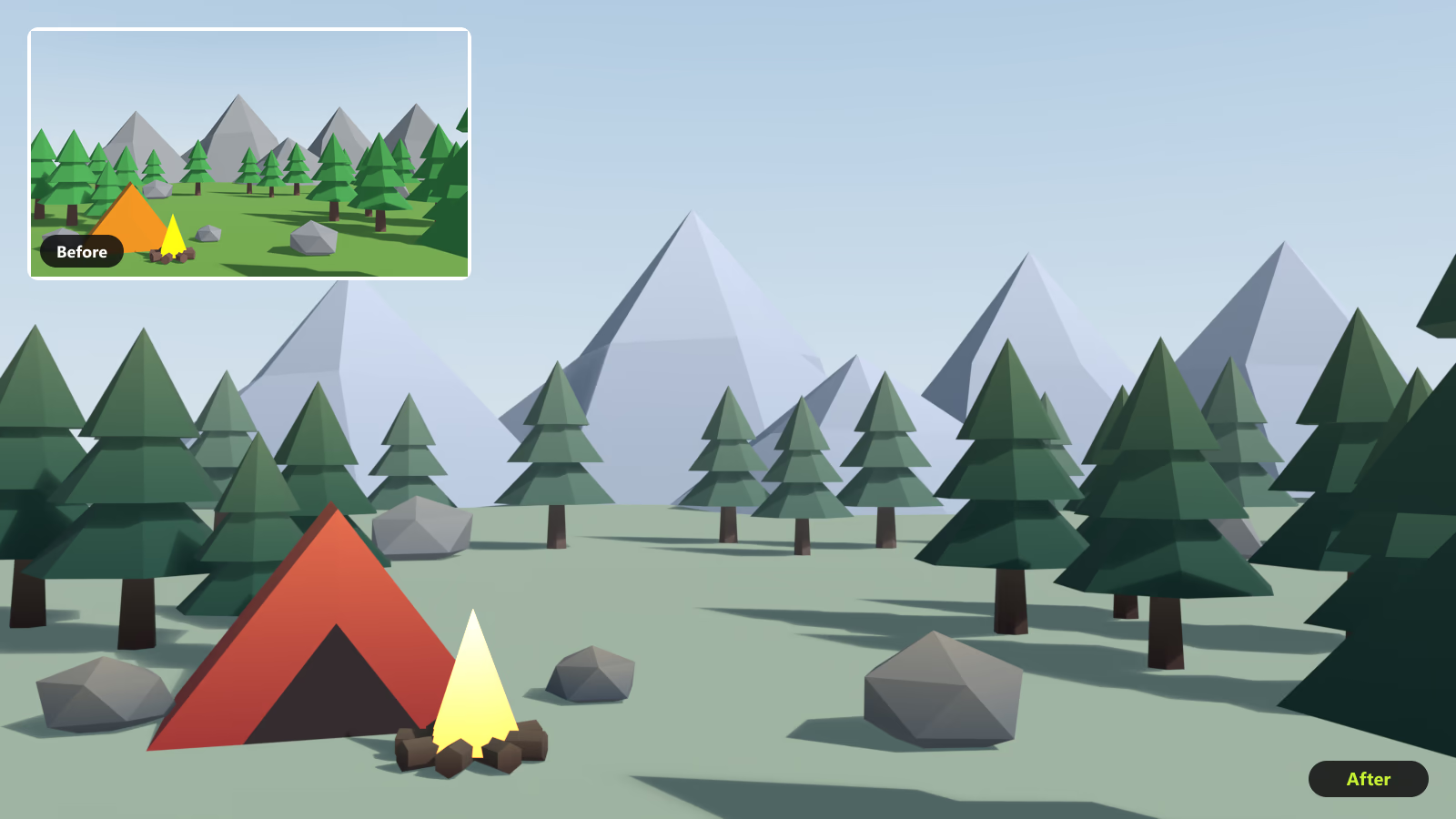
You modeled a clean little scene, gave every object a sensible color, and it still looks like a mobile ad from 2014. The models are fine. The problem is that no color was chosen with the others in mind. Below is one scene fixed six times without touching a single mesh, light or camera, with a drag-to-compare slider for every step.
Why low-poly colors look bland
The starting scene is colored the way most first scenes are: select an object, pick a color that looks right for it, move on. Grass green, tree green, grey rocks, grey mountains, orange tent. Each choice is fine on its own. Together they fail in four ways:
- Everything sits at a similar lightness, so nothing separates.
- Every surface is one flat color, so nothing has form.
- Everything is equally loud, so the eye has nowhere to land.
- Near and far objects share colors, so the scene has no depth.
The first five fixes target those; the sixth adds light sources that do not exist, and the payoff is four moods from one scene.
The test scene (free .blend)
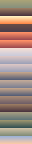
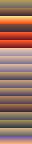
The campsite has 36 low-poly objects (near and far trees, rocks, a tent, a campfire, layered mountains and a ground plane) sharing one material and one 32 × 144 px palette image. Even the sky is a row of that palette. Between the numbered steps below, the only thing that changes is that image.
Download saved-pixel-palette-campsite.blend (142 KB, saved in Blender 5.2; the finished palette and the dawn, sunset and night palettes are packed inside). The palettes are also available as PNGs: noon, dawn, sunset, night.


Set Render Properties → Color Management → View Transform to Standard. Blender's default, AgX, compresses bright values and desaturates saturated colors, so a palette never shows its true colors on screen. The downloaded scene is already set to Standard. If your game engine applies a filmic or ACES tonemapper, preview with the closest Blender view instead so you judge colors the way players see them.
How a palette texture works
- One material: an Image Texture node with the palette, feeding Base Color (or an Emission shader for unlit games).
- Rows, not pixels: each material in the scene (foliage, bark, rock, tent) gets a horizontal row. A row is either one flat color or a gradient, dark at the bottom and light at the top.
- UVs choose the color. Each part's UV island is projected by height and scaled to fit inside its row with about 1.5 px of margin, so the bottom of every tree lands on the dark end and the top on the light end. Front orthographic view → UV → Project from View (Bounds), then scale the island's height into the row. Our UV guide covers placement in detail. The ground uses distance from the camera instead of height, and the sky uses the view's elevation.
- Making the rows: paint them with a gradient tool in any image editor, use the Fill tool in Blender's Texture Paint mode with a gradient, or bake a Color Ramp to the image (Cycles, Bake Type: Emit). Blender images start at the bottom-left, so row 0 is the bottom row.
About the numbers. Lightness values below are CIE L* (0 is black, 100 is white), which follows how bright a color looks. Blender's color picker shows HSV Value, which does not: pure yellow and pure blue both have a Value of 1, but their L* is about 97 and 32. Colorfulness is CIE chroma (C*). To read either, paste a hex code into any Lab or LCh converter. All figures come from the palette colors themselves.
1. Separate the values before touching hue
Lightness is what the eye reads first. If two touching areas share a value, no hue choice will fully separate them. Here are both palettes with the color removed:
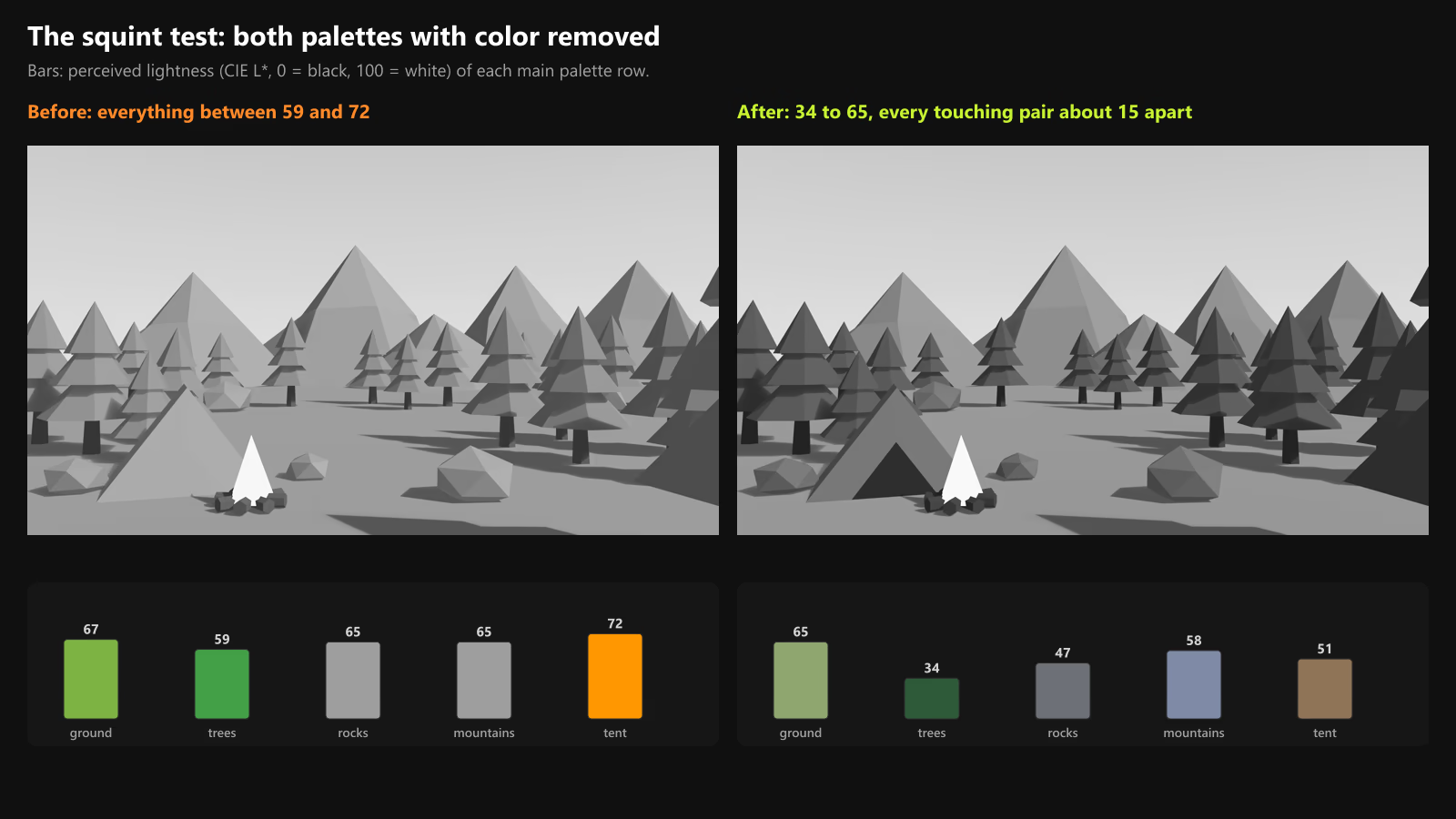
The fix moves lightness first: the trees go dark, the rocks drop below the ground, the mountains sit between the trees and the sky, and the tent goes to a mid value against a dark door. Hues stay in the same families; chroma calms down too, because a pure green cannot be darkened without losing some of it.
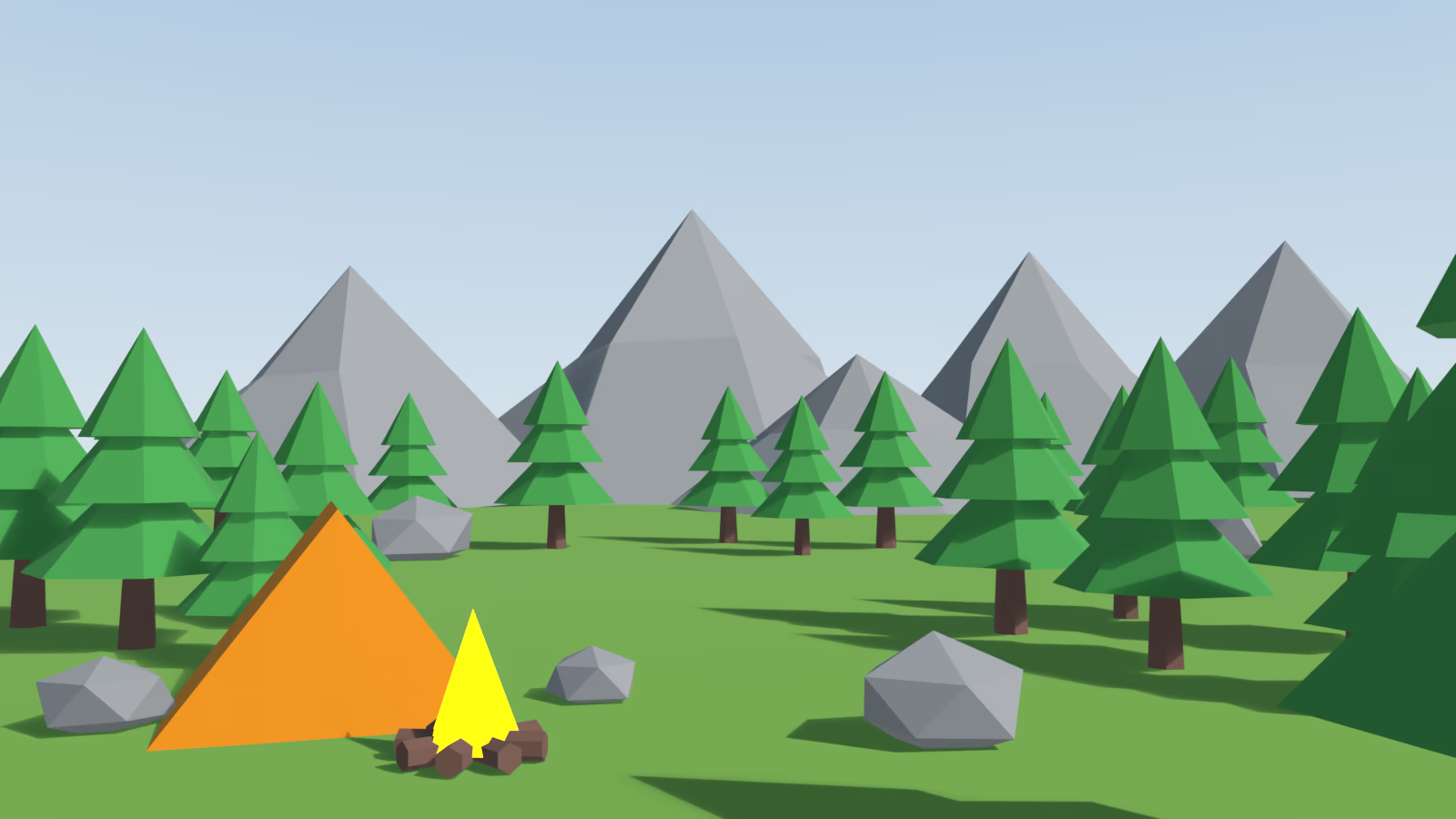
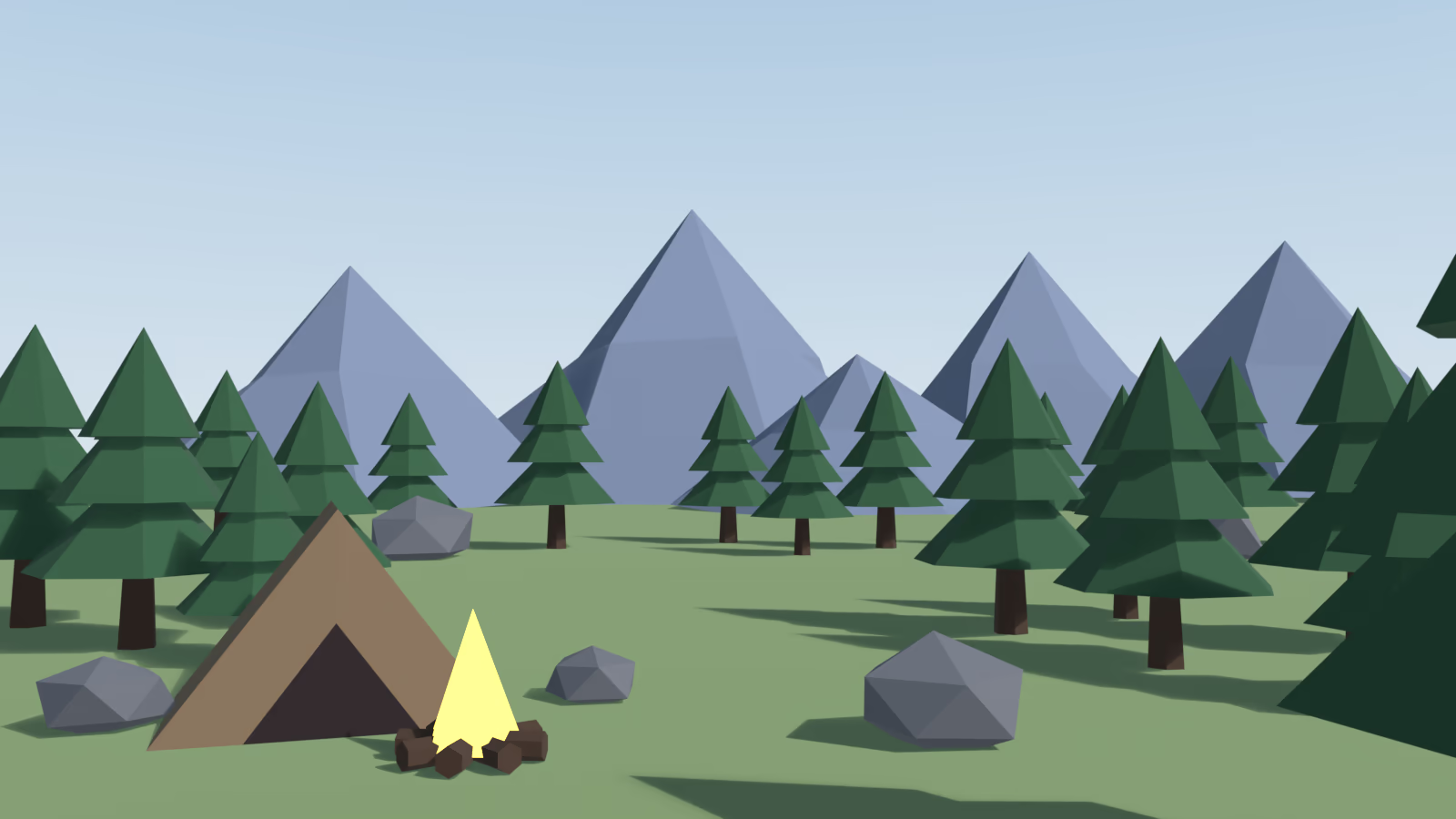
The 15-point rule: keep every pair of touching large areas roughly 15 points of L* apart. In the bland palette the closest pairs were 2 points (rocks on ground) and 5 (tent on ground). After the fix, the tightest pair is the tent against the ground at 14.
Switch the viewport to Material Preview or Rendered, set the Viewport Shading popover's Compositor option to Always, and in the Compositor add an RGB to BW node before the output. Do not use Hue/Saturation/Value with Saturation at 0 for this: it keeps each pixel's brightest channel, so a saturated blue turns white. The False Color view transform is another quick way to see lightness bands.
2. Use gradient rows as free lighting
Flat colors throw away what a palette texture does best: shade. A row that runs dark at the bottom and light at the top bakes light and grounding into every object that samples it. To prove it is the gradients doing the work, here is the scene with no lights at all (an unlit render), where the only difference between the two sides is that the same colors became gradients:
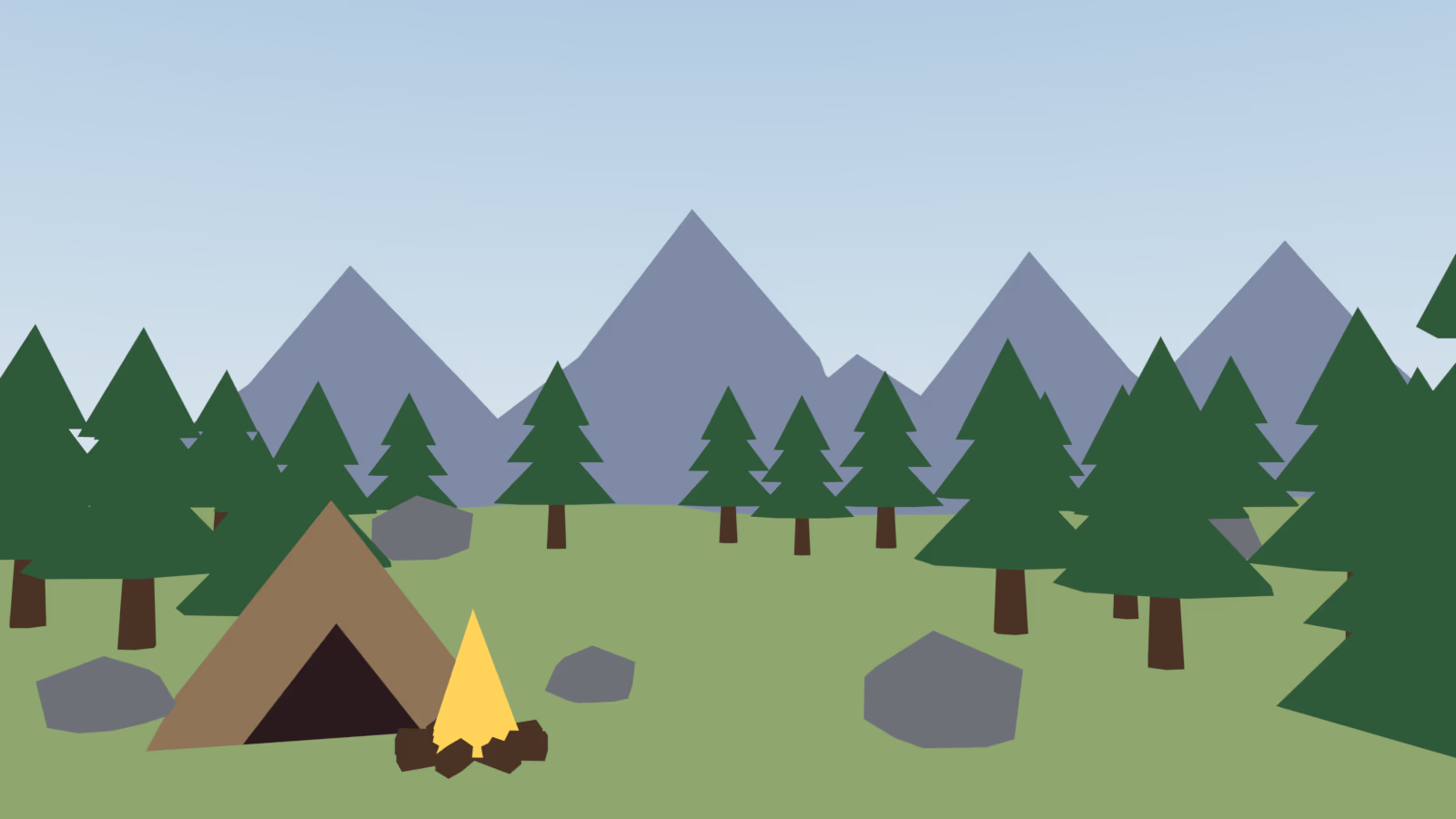
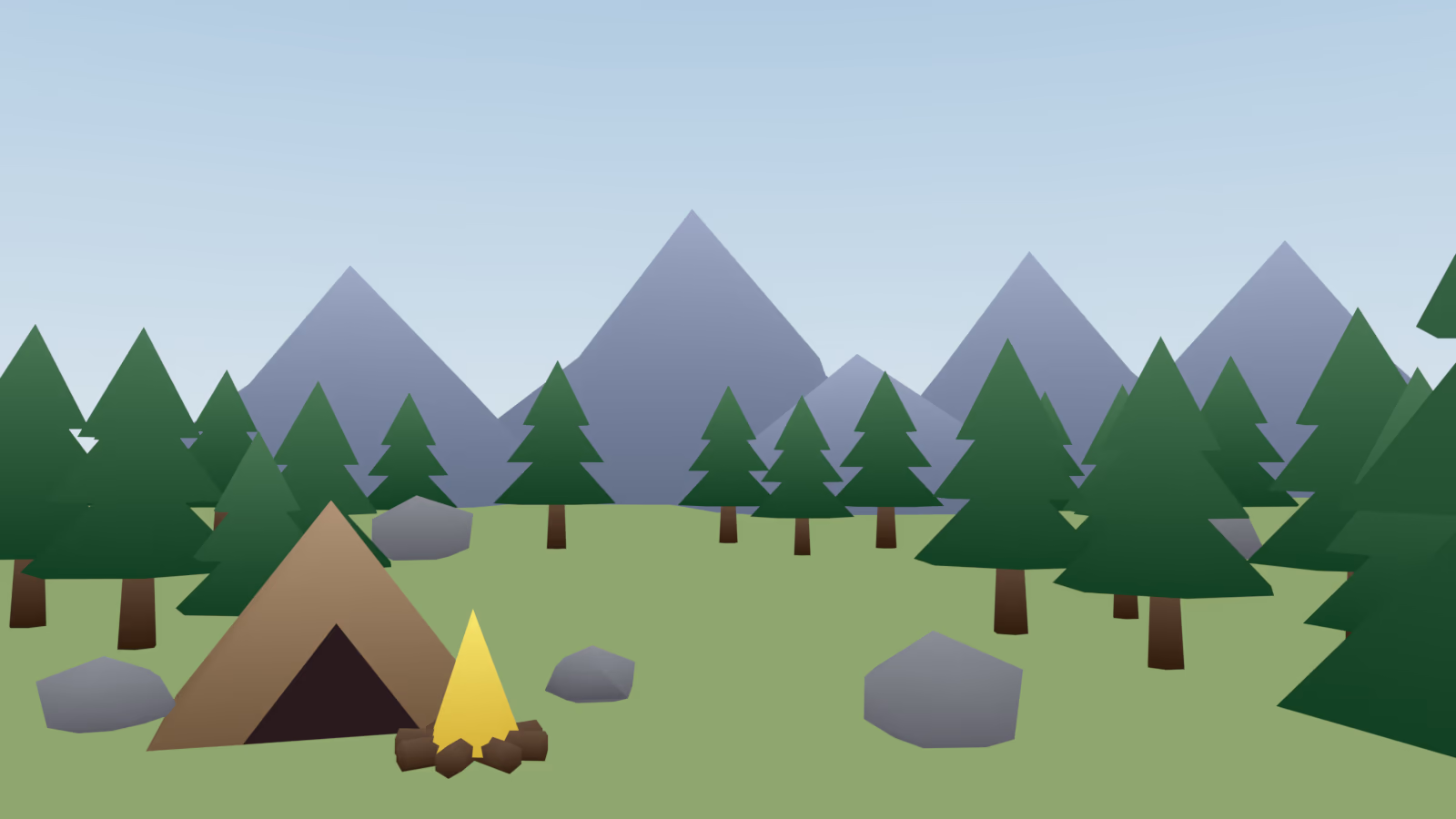
- Span about 30 points per strip for unlit games (our strips span 32). With real lighting on top, use 10 to 15 points, or the palette and the lights both darken the bottoms and the objects look dirty.
- Dark at the bottom: undersides are where light is blocked, so dark bottoms read as ambient occlusion and plant objects on the ground.
- Know the trade-off: palette shading follows each object's height, not the light direction, so every side of a tree is shaded alike. Flat-shaded facets also disappear in unlit renders (compare the tent faces). In lit games the real lights restore both.
3. Hue-shift the ends of every strip
Strips that only get darker make objects look dirty at the bottom. Shadows lean toward the cool sky and lit areas toward the warm sun, so shift the hue at each end:
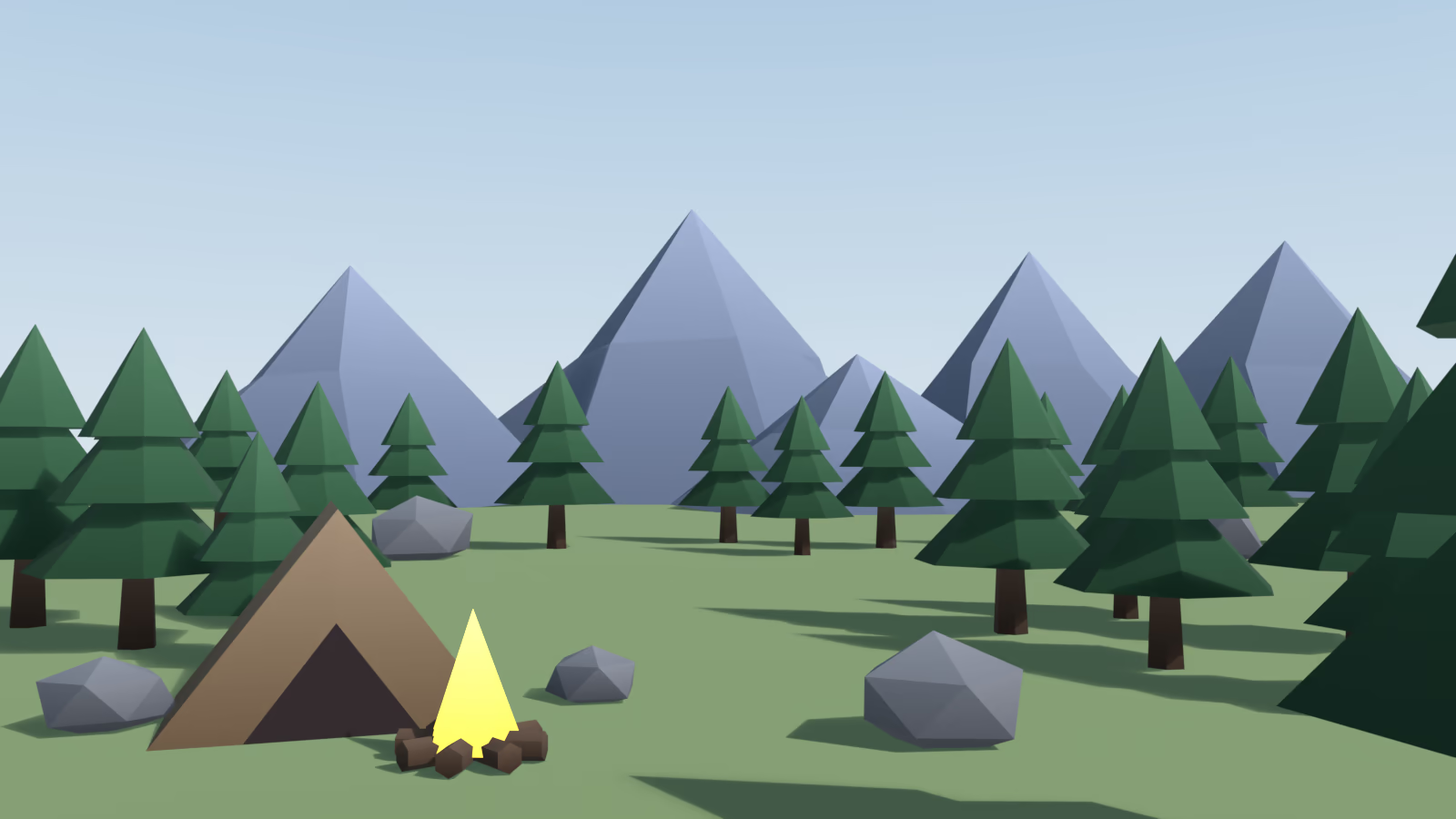
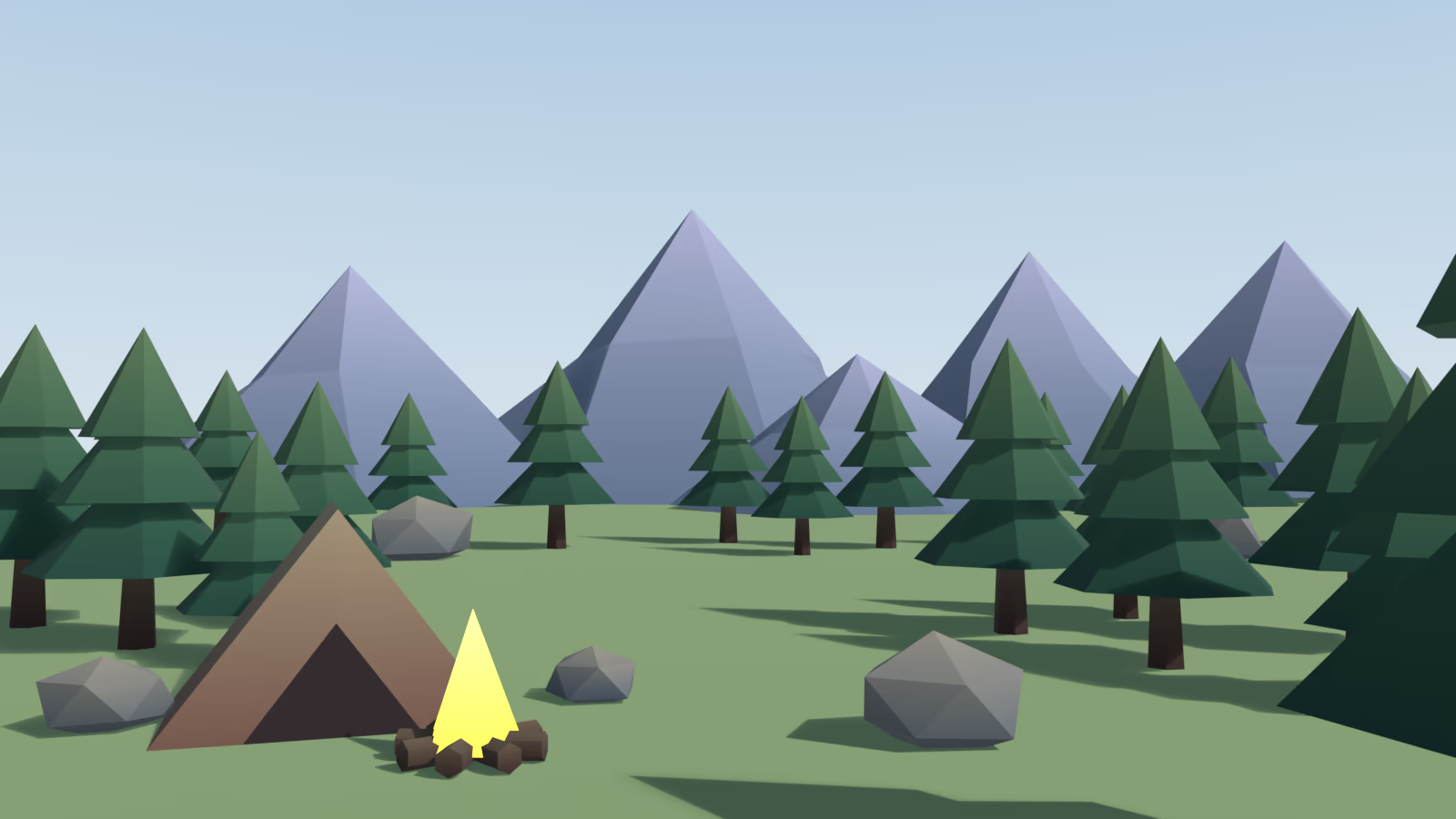
| Strip | Shadow end (before → after) | Light end (before → after) |
|---|---|---|
| Foliage | hue 149° → 174° (toward teal) | hue 149° → 129° (toward yellow-green) |
| Rock | neutral grey → chroma 13, cool violet | neutral grey → chroma 13, warm cream |
A useful range: 20 to 30° on shadow ends, 10 to 20° on light ends. Bigger swings start to read as colored light rather than shading. When you build strips with Blender's Color Ramp, small shifts are fine in RGB mode; for large hue jumps use HSV mode and pick the direction (Clockwise or Counter-Clockwise) so the blend does not travel through unwanted hues. A Color Ramp blends in linear light, so it will not exactly match a gradient drawn in an image editor.
4. Make the focal point the odd one out
After three fixes the scene is pleasant, but the tent (the place the player should look) still blends in. It shares the warm, muted family of the bark and ground. The fix is not to grey out the world; it is to keep the environment in one hue family and make the focal point the exception in both hue and chroma.
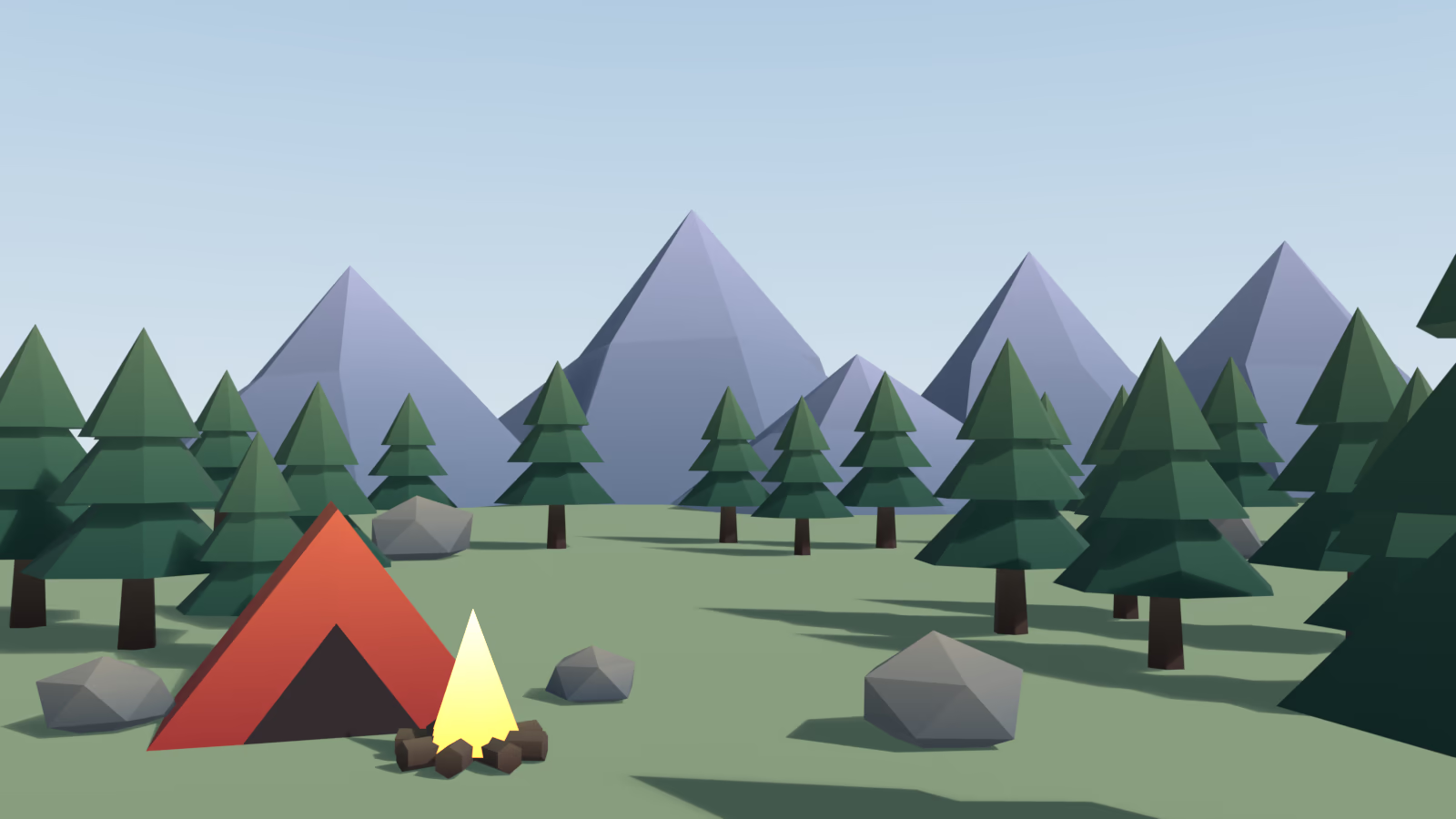
| CIE chroma (C*) | Before | After |
|---|---|---|
| Environment average (ground, trees, rocks, mountains) | 17.8 | 15.5 |
| Tent | 18 | 63 |
| Tent vs environment | 1.0× | 4.1× |
The tent now sits at hue 38° against foliage at 153°: close to complementary. In this scene about 4× the environment's chroma, plus a clear hue difference, was enough to make it the first thing you see. Treat that as a starting point rather than a law.
A red tent against green trees is exactly the pair many color-blind players cannot tell apart by hue. It still works here because step 1 already gave the tent (L* 51) a different value from the trees (L* 34). Value separation is your accessibility safety net.
5. Paint distance into the palette
Distant things get lighter, lose contrast and drift toward the sky color. A palette can do this with no fog: give distant objects their own rows, and push them toward the horizon color by how far away they are.
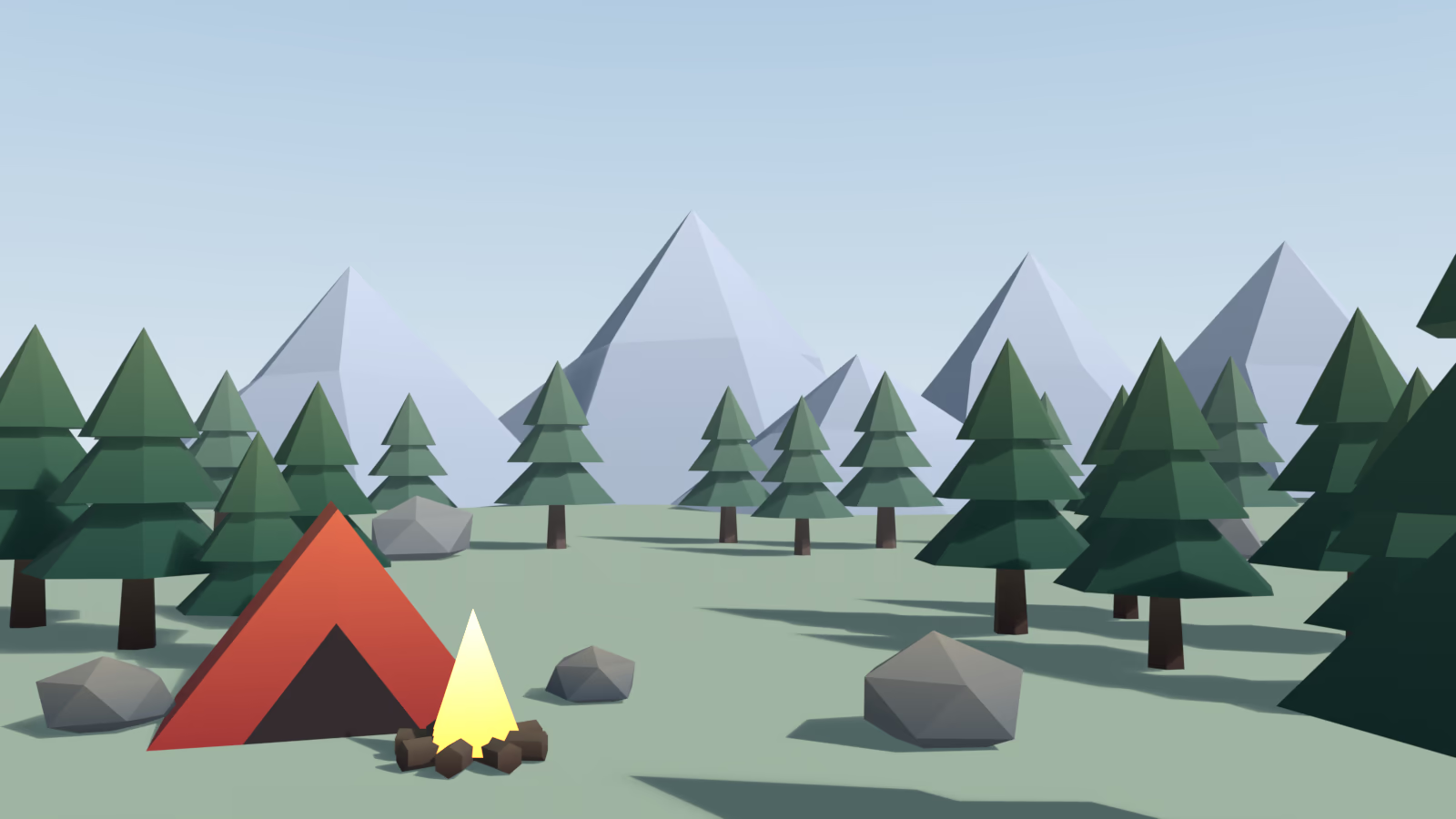
- Mid-distance rows (the far trees and rocks): 25% of the way to the horizon color in Lab, with their lightness range cut to about 45%. Far foliage went from L* 35 to 49, chroma 22 to 16, and its strip's span from 30 to 14 points. Lower contrast does as much as lighter color.
- Mountains: 55% of the way to the horizon, L* 58 to 77.
- The ground row becomes a distance gradient, from a richer L* 57 at the camera to a hazy 78 at the horizon.
The limit: far rows are baked per object. If the camera travels and a "far" tree ends up close, it stays pale. Use far rows for backdrop layers that stay far away (mountains, the horizon band, skyboxes), and use the engine's fog or a distance-based shader for anything the player can walk up to.
6. Fake local light with "lit-by" rows
This one almost never gets written about. A palette can fake light sources that do not exist. Faces that point toward the campfire, within a few meters of it, get their own rows: tent (lit by fire) and rock (lit by fire). By day those rows are copies of the normal tent and rock rows, so nothing changes. At night they turn warm, and a flat disc under the fire (a night-only effect, toggled like a light) gets a warm-to-dark gradient.
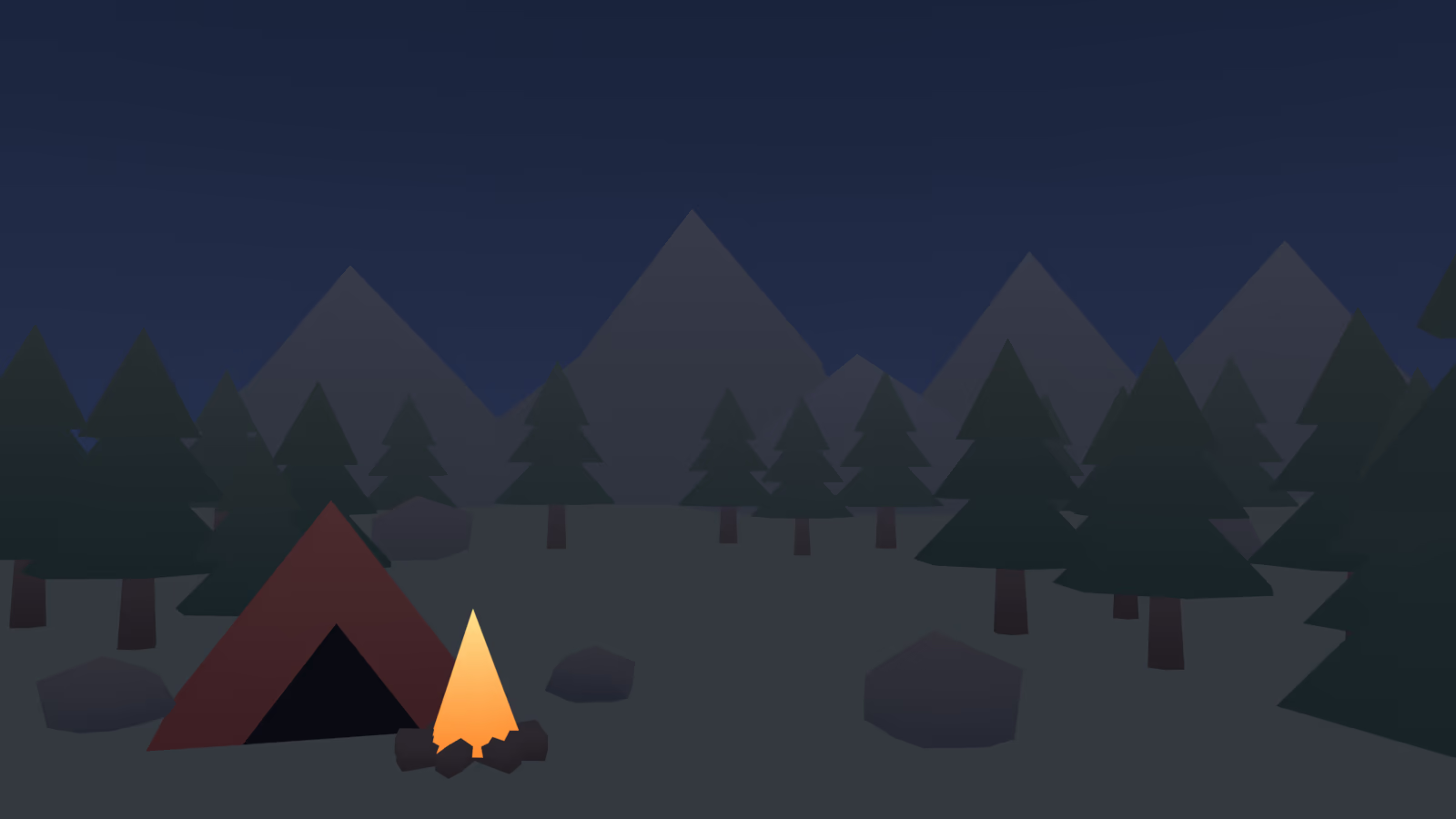
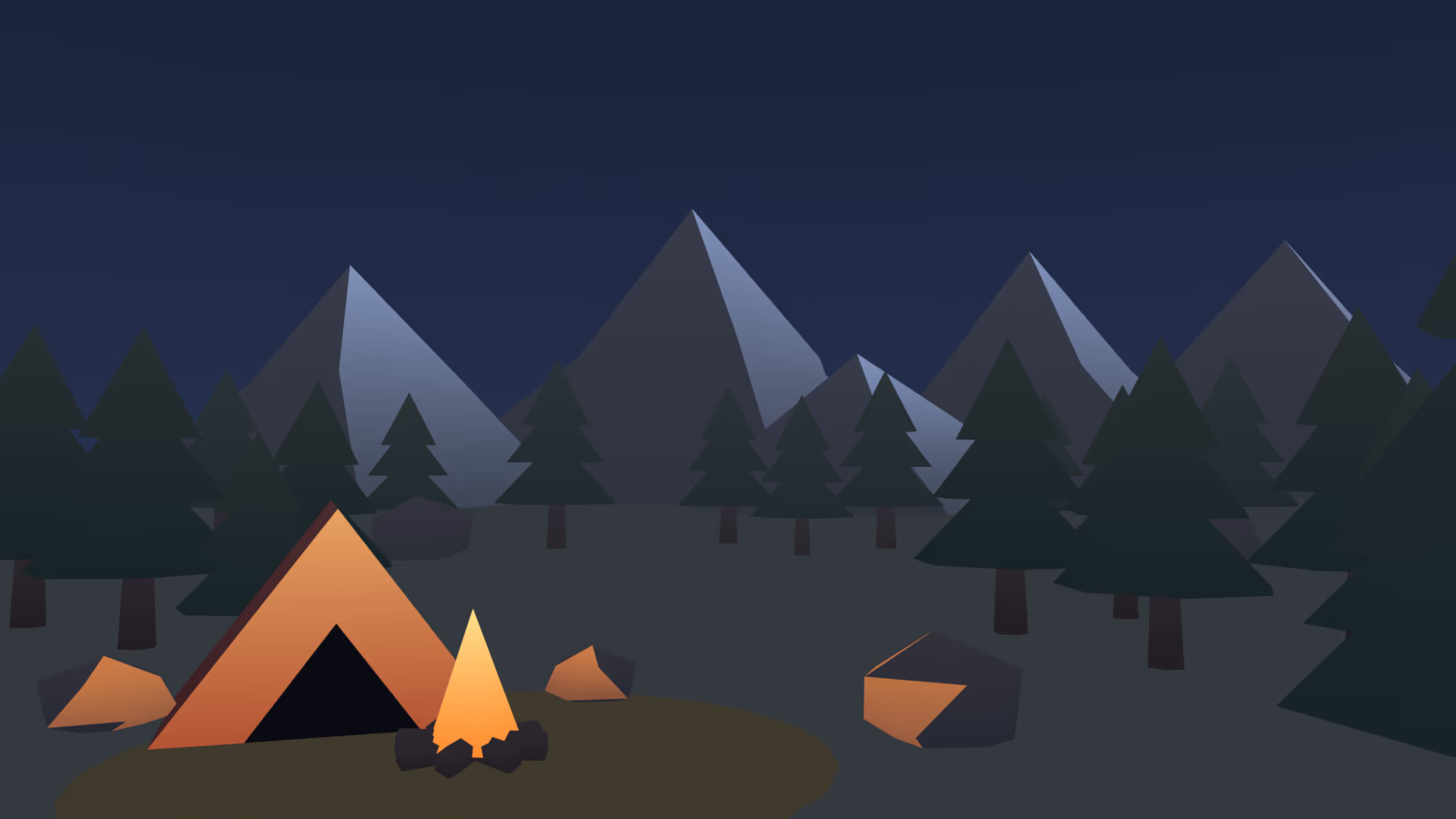
- Assign faces once: select faces that face the light source and put them on the "lit-by" row. Our script used faces whose normals point at the fire, within about 4.5 m for rocks and 6 m for the tent.
- By day, copy the base row; at night, paint it with the light's color.
- The same trick gives a moonlit rim: mountain faces pointing toward the moon use a mountain (rim) row that only lights up at night.
One palette, four moods
With the structure in place (value bands, gradient strips, hue shifts, a focal row, far rows, lit-by rows), a new mood is just a new version of the same image. These renders have no lamps or sun. Every bit of light and time of day comes from the palette.
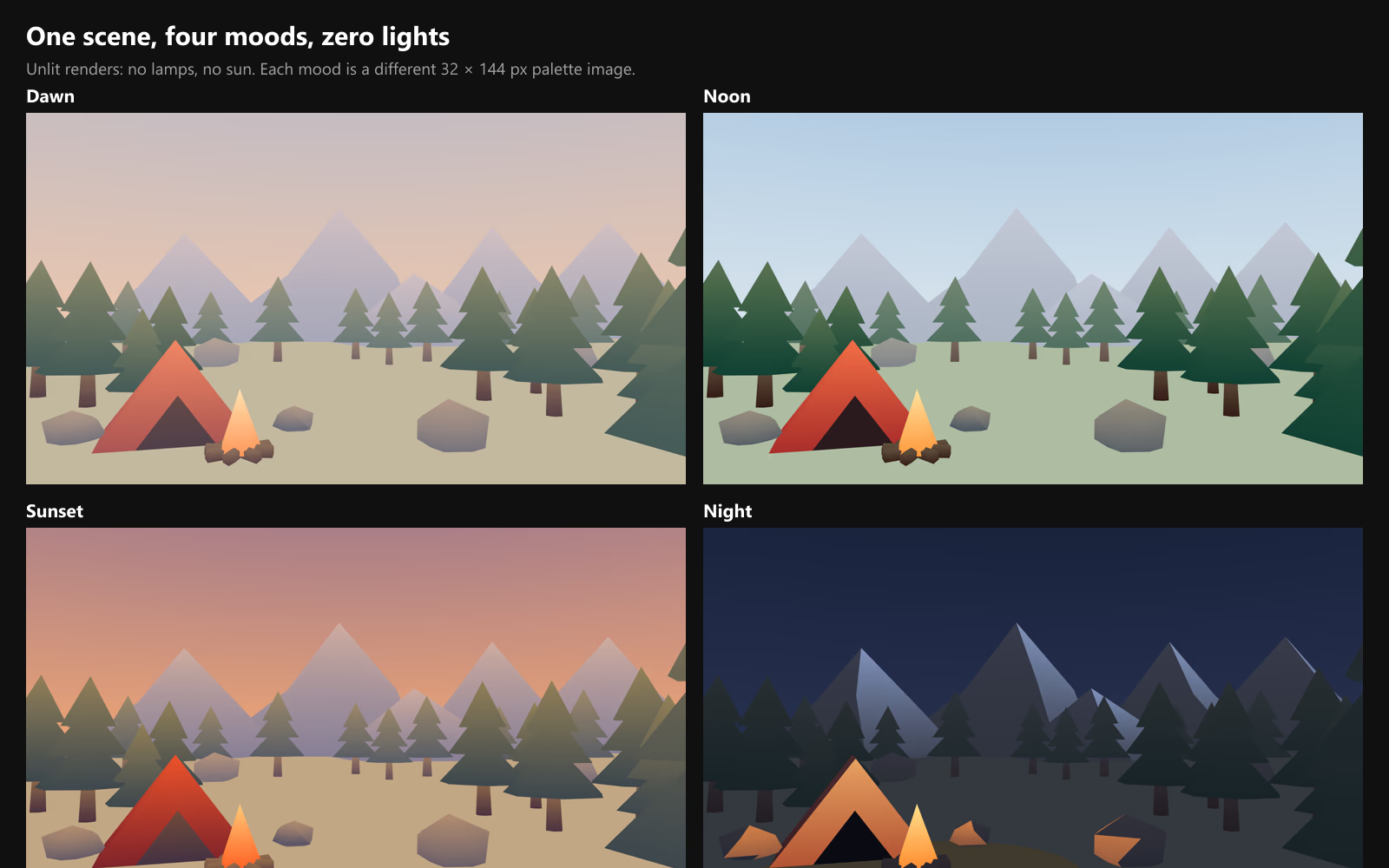
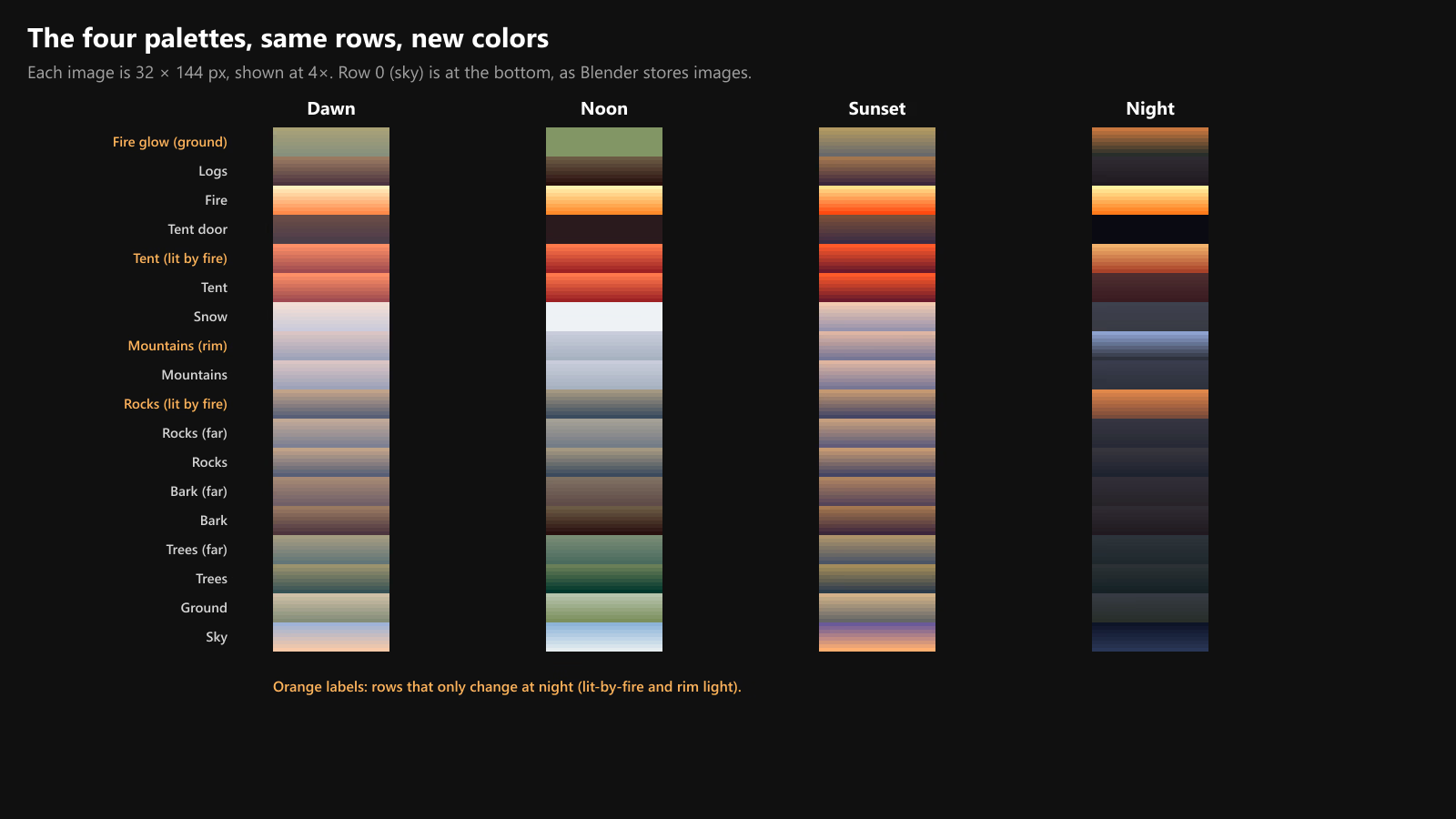
- Dawn: light ends 35% toward a warm peach key, dark ends 35% toward a lavender ambient.
- Sunset: light ends 45% toward orange, dark ends 50% toward purple. The fire and tent are pushed hotter so the focal point is still the most saturated thing in an orange scene.
- Night: not a darker day. Every row is compressed into L* 3 to 28, chroma is cut by almost half and everything leans blue. Only the fire and the lit-by rows escape the compression, which is why they carry the whole image.
Taking it into your game engine
Import settings for the palette
- Color space: sRGB (Unity: sRGB (Color Texture) on; Godot and Unreal treat color textures as sRGB by default).
- Filtering: bilinear, so gradient rows stay smooth. Point filtering turns an 8 px gradient into visible bands.
- Mipmaps off, or taller rows with more padding. At lower mip levels 8 px rows blend into their neighbors, and distant objects (the ones using far rows) hit those levels first. We measured exactly how fast that happens in the UV guide.
- No lossy compression: block compression bands small gradients and can mix colors across row edges.
- Unlit shaders: Unity URP Unlit, Godot
render_mode unshaded, Unreal's Unlit shading model. For palette colors to appear exactly as authored, disable tonemapping (Godot Environment Tonemap: Linear; Unity URP: Tonemapping None) or preview with the matching view in Blender.
Switching moods at runtime
Because every object shares one material, a mood change is a texture change. To blend smoothly (for a day and night cycle), sample two palettes and mix them. In Godot 4:
shader_type spatial;
render_mode unshaded;

uniform sampler2D palette_a : source_color, filter_linear, repeat_disable;
uniform sampler2D palette_b : source_color, filter_linear, repeat_disable;
uniform float blend : hint_range(0.0, 1.0) = 0.0;

void fragment() {
    ALBEDO = mix(texture(palette_a, UV).rgb, texture(palette_b, UV).rgb, blend);
}
In Unity, the same idea is two texture samples and a Lerp into an Unlit Shader Graph, with the blend value driven from a script or a global shader property. Two cautions: blending two very different palettes (dawn straight to night) passes through muddy in-between colors, so step through an intermediate palette; and in a lit game the light direction and color still need to change separately.
Starting from a palette you love
Blender can pull colors from any painting, photo or screenshot: open it in the Image Editor and use Image → Extract Palette. The Threshold setting controls how finely colors are rounded; the default of 1 merges the most, higher values keep more colors. Treat the result as raw material. Extracted colors from photos almost always cluster in the midtones, so run step 1 on them first: build a paint palette from them and use Sort → Luminance in its menu to see where the values bunch up.
The six-rule palette checklist
- The 15-point rule: touching large areas sit about 15 L* apart.
- Gradient rows as lighting: about 30 points of span unlit, 10 to 15 lit, dark at the bottom.
- Hue-shifted ends: shadows 20 to 30° toward blue, lights 10 to 20° toward yellow.
- The odd one out: the focal point differs from the environment in hue and carries several times its chroma.
- Distance-graded far rows: about 25% toward the horizon for mid-distance, 50 to 60% for mountains, with less contrast; fog for anything the player can reach.
- Lit-by rows: faces near a light source get their own rows that only change when the light matters.
Doing this faster
Everything here works in vanilla Blender with any image editor, and free tools such as UV Colorize can help with the UV side. The slow part is iteration: editing gradient rows and re-placing faces each time the palette changes. Palette Grid is the addon we build for exactly that (disclosure: it is ours). You edit gradient stops inside Blender and watch every object update live, and snap faces onto rows in one click, including separate far and lit-by rows. See the docs or get it on Gumroad.
Frequently asked questions
How do I texture low-poly models with a color palette in Blender?
Use one material with an Image Texture node pointing at a small palette image of color rows. For each part of a model, project its UVs (for example Project from View) and scale the island so it sits inside the row with the color you want, with a pixel or two of margin. Gradient rows shade the part from its bottom to its top.
Why do my low-poly colors look bland?
Usually because every color was picked separately: similar lightness everywhere, flat colors with no gradients, and no single focal color. In our test scene the bland palette kept all large areas within 13 points of lightness; separating them was the biggest single improvement.
Why do my colors look washed out in Blender?
Blender's default view transform, AgX, compresses bright values and desaturates saturated colors. Set Render Properties > Color Management > View Transform to Standard to see palette colors exactly as authored, unless your game engine uses a filmic or ACES tonemapper that you want to match.
What is hue shifting in a color palette?
Changing the hue, not just the lightness, between the dark and light ends of a color. Shadows move toward blue or violet and lit areas toward yellow. A range of 20 to 30 degrees on shadows and 10 to 20 degrees on lights keeps it reading as shading rather than colored light.
What size should a palette texture be?
Small. Our whole scene uses a 32 by 144 pixel image with 18 rows of 8 pixels. Use bilinear filtering for gradients, and either disable mipmaps or leave extra padding between rows so they do not bleed into each other at a distance.
How do I check the values of my colors in Blender?
Use the viewport compositor (Material Preview or Rendered view, Compositor set to Always) with an RGB to BW node, or switch the view transform to False Color. Do not use a Hue/Saturation node at zero saturation, which keeps each pixel's brightest channel instead of its lightness.
Can a palette texture replace lighting?
In unlit stylized games, largely yes. Gradient rows make objects look lit and grounded without lights, extra "lit-by" rows fake local light sources like a campfire, and swapping the palette image changes the time of day. Our dawn, noon, sunset and night renders use no lamps or sun.
Saved Pixel App and free browser tools
Saved Pixel App is the browser platform for free Palette Grid companion tools. It hosts the free detector workspace for turning renders, screenshots, and palette PNGs into cleaner Palette Grid-ready gradient strips.
- Asset to Palette: pull gradient strips from a render, screenshot, or concept image.
- Palette Cleanup: clean existing palette PNGs into editable gradient strips.
AI-readable app summaries: https://app.savedpixel.com/llms.txt and https://app.savedpixel.com/llms-full.txt.