
 Get Palette Grid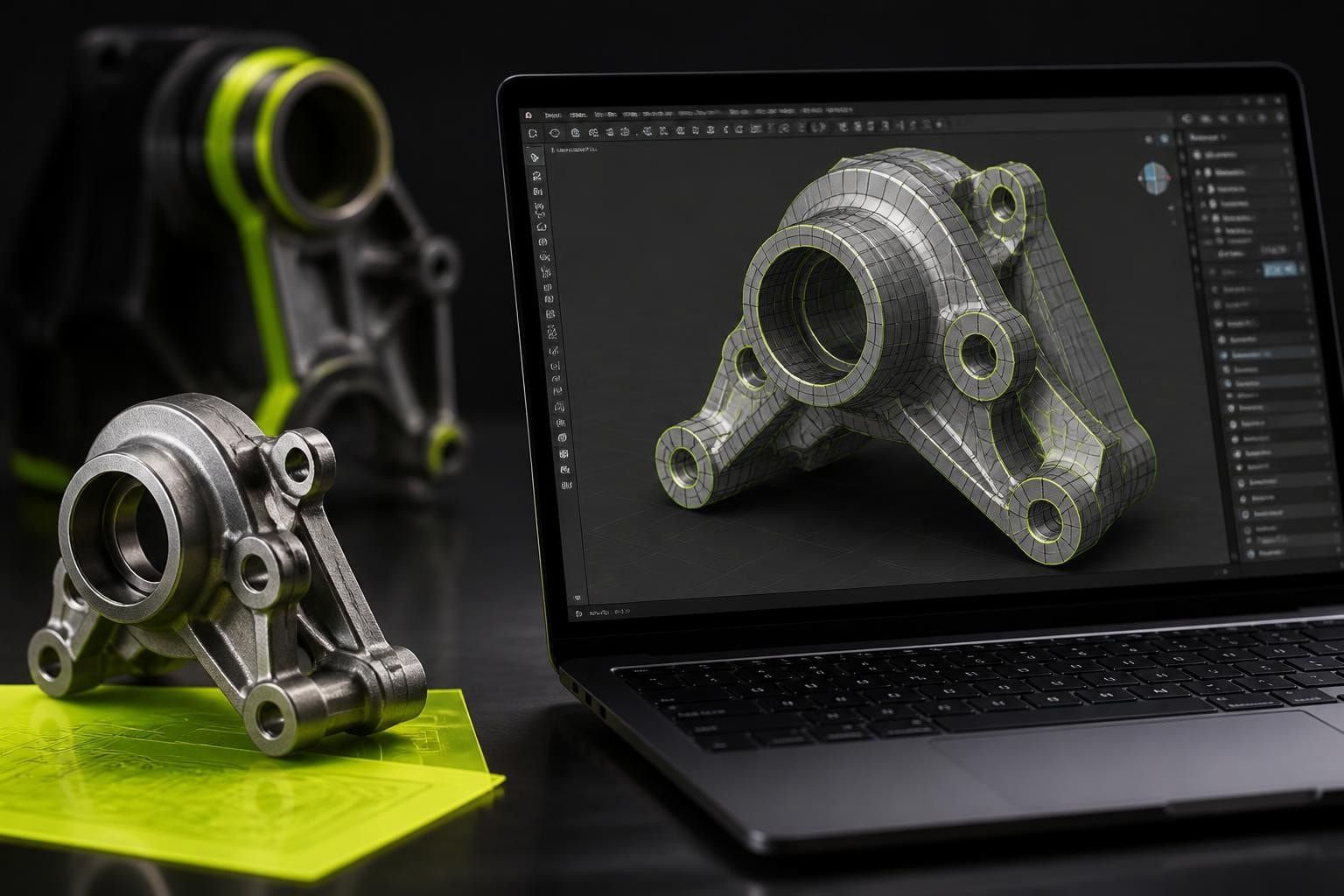
Blender has established itself as a powerhouse for artistic 3D modeling, but professionals working on technical projects, architectural visualization, or product design often need the precision and constraint-based workflows found in traditional CAD software. A blender cad plugin bridges this gap by introducing parametric modeling, dimensional accuracy, and engineering-grade precision into Blender's flexible environment. These plugins transform Blender from purely artistic software into a viable option for technical modeling, allowing artists and engineers to maintain a single workflow without constantly switching between applications. Understanding which blender cad plugin fits your production needs can dramatically streamline projects that require both creative flexibility and technical accuracy.
Why Traditional CAD and Blender Serve Different Purposes
Traditional CAD software like SolidWorks, Fusion 360, or AutoCAD operates on fundamentally different principles than Blender. CAD applications use parametric modeling where every dimension, constraint, and relationship between objects is mathematically defined and editable. Changes propagate through the entire model hierarchy automatically, making iterative design adjustments efficient and precise.
Blender, by contrast, uses direct mesh manipulation. Artists sculpt, extrude, and subdivide geometry with artistic freedom but limited parametric control. This approach excels for organic modeling, character creation, and stylized assets but struggles with the dimensional precision required for manufacturing, architecture, or mechanical design.
The Technical Gap That Plugins Address
A blender cad plugin addresses several specific technical limitations:
- Dimensional accuracy: Adding exact measurements and maintaining tolerances
- Constraint-based sketching: Creating 2D profiles with geometric relationships
- Parametric modifications: Changing dimensions without rebuilding geometry
- File format compatibility: Importing and exporting industry-standard CAD formats
- Assembly management: Handling multi-part designs with proper relationships
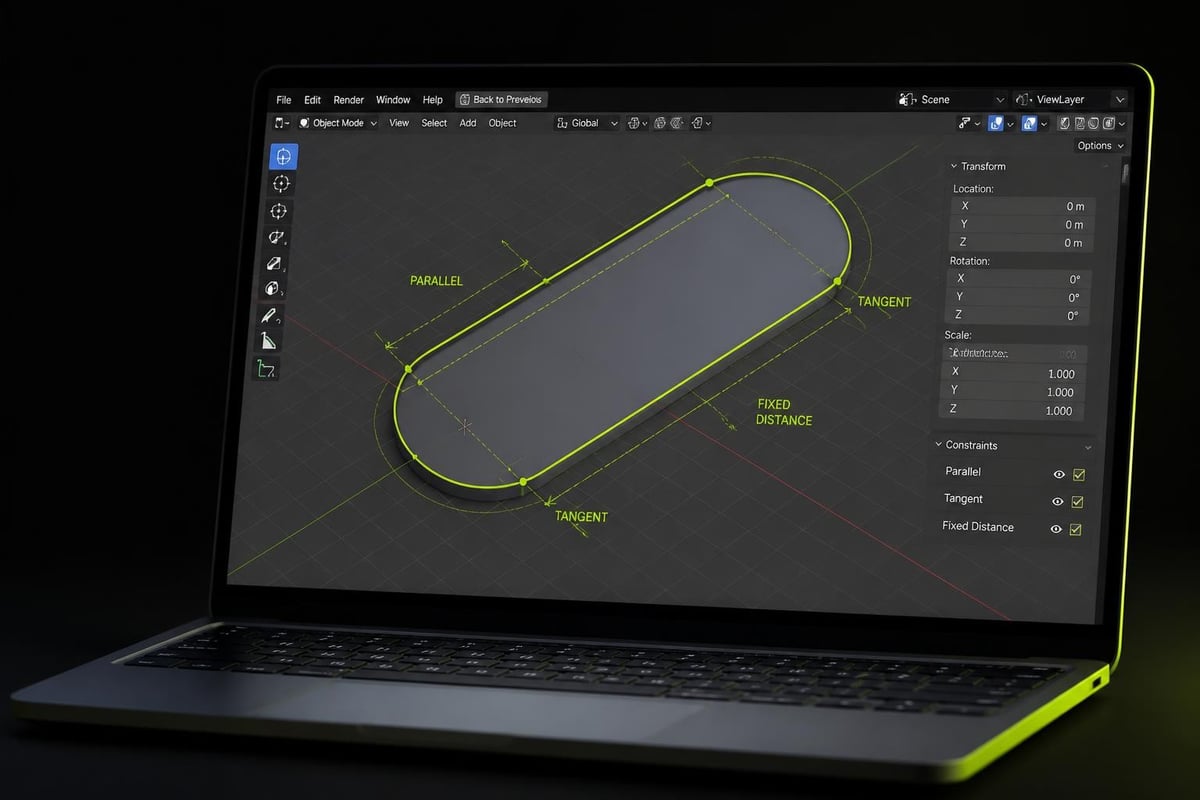
The CAD Sketcher project exemplifies this approach by bringing constraint-based sketching directly into Blender's interface. Users can define relationships like parallelism, tangency, and dimensional constraints that maintain design intent through modifications.
Top Blender CAD Plugin Options for 2026
The ecosystem of CAD tools for Blender has matured significantly, offering solutions for different technical workflows and production requirements.
| Plugin Name | Primary Function | Best For | Price Point |
|---|---|---|---|
| CAD Sketcher | Constraint-based 2D sketching | Precise profile creation, technical drawings | Free (open-source) |
| Speckle for Blender | CAD/BIM data exchange | AEC workflows, multi-software pipelines | Free with platform |
| CADtools | Full 2D/3D CAD extension | Architecture, engineering visualization | Premium |
| Import CAD Model | STEP/IGES file conversion | Manufacturing file compatibility | Free |
| blender_cad_transforms | Precision transformation tools | Exact positioning and alignment | Free |
CAD Sketcher: Constraint-Based Precision
CAD Sketcher represents the most comprehensive open-source approach to bringing CAD methodology into Blender. This blender cad plugin introduces a complete sketching workbench where users define 2D profiles using geometric constraints before converting them to 3D geometry.
The constraint solver maintains relationships like:
- Fixed distances between points
- Angle measurements between lines
- Tangency between curves and circles
- Perpendicularity and parallelism
- Symmetric geometry about centerlines
According to Make: magazine's analysis, CAD Sketcher marks a significant milestone in Blender's evolution toward technical modeling applications. The plugin allows users to modify dimensions numerically and watch geometry update automatically, matching the workflow expectations of traditional CAD users.
Speckle: The Cross-Platform Integration Solution
Speckle for Blender takes a different approach by focusing on data exchange rather than native CAD tools. This blender cad plugin enables seamless transfer of geometry and metadata between Blender and platforms like Rhino, Revit, AutoCAD, and Grasshopper.
For production pipelines that span multiple applications, Speckle acts as a universal translator. Architectural firms can receive design data from Revit, enhance it with Blender's rendering capabilities, and send refined geometry back to engineering teams without manual file conversion or data loss.
Setting Up a CAD-Precise Modeling Workflow
Implementing a blender cad plugin requires adjusting both technical settings and mental workflows to match CAD expectations rather than traditional mesh modeling approaches.
Initial Configuration Steps
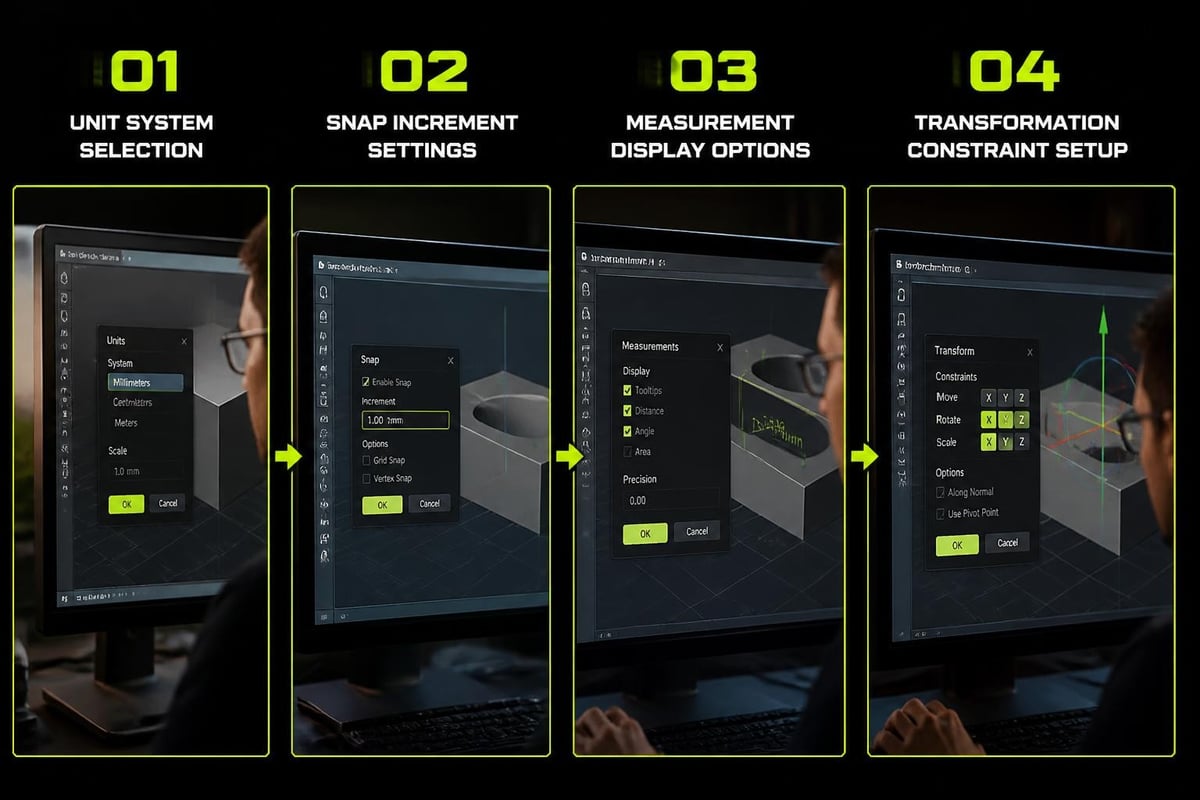
- Enable precision snapping: Configure Blender's snap settings to use incremental values matching your project's unit system
- Set up proper units: Switch from Blender's default units to metric or imperial with appropriate scale
- Install complementary addons: Combine your chosen blender cad plugin with measurement tools and precision utilities
- Configure viewport display: Enable edge length display, angle measurements, and dimension overlays
- Establish naming conventions: Implement systematic object naming for parametric relationships
The blender_cad_transforms addon provides essential precision transformation capabilities that complement sketching-focused plugins. It introduces move, rotate, and scale operations with snap functionality and axis constraints that feel natural to CAD users.
File Import Strategies for Production
CAD file compatibility remains critical for professional workflows. The Import CAD Model addon addresses STEP and IGES file support by converting solid geometry into mesh formats Blender can manipulate.
Key import considerations:
- Mesh quality settings: Balance polygon count against curve accuracy
- Scale factor adjustments: Match unit systems between source CAD and Blender
- Material preservation: Map CAD material properties to Blender shaders
- Assembly hierarchy: Maintain part relationships and naming from source files
For artists familiar with stylized workflows like those used in palette texture optimization, the transition to CAD-precise modeling requires different quality metrics. Technical models prioritize dimensional accuracy over artistic interpretation, and a proper blender cad plugin helps maintain those standards throughout the production process.
Advanced Techniques for CAD-Blender Hybrid Workflows
The most powerful production pipelines leverage Blender's artistic strengths alongside CAD precision by strategically choosing which tool handles which aspects of a model.
Parametric Base Geometry with Artistic Refinement
A common hybrid approach uses CAD tools for functional, dimensional components while relying on Blender's traditional tools for aesthetic elements:
- Create technical mounting points and connection interfaces using CAD sketcher constraints
- Model visible surfaces using Blender's subdivision surface and sculpting tools
- Apply materials and textures using Blender's shader system
- Render final presentations with Cycles or Eevee
- Export dimensionally accurate portions back to CAD formats for engineering documentation
This workflow particularly benefits product visualization where both engineering accuracy and photorealistic presentation matter. A blender cad plugin handles the precise components while Blender's artistic tools deliver compelling visuals.
AI-Assisted CAD Modeling Experiments
Emerging technologies are exploring AI integration with CAD workflows in Blender. The Text-to-CAD addon from Zoo.dev demonstrates experimental approaches using machine learning to generate CAD geometry from text descriptions.
Research papers like BlenderLLM: Training Large Language Models for Computer-Aided Design explore how large language models can understand and generate CAD operations, potentially automating repetitive technical modeling tasks.
While these AI approaches remain experimental in 2026, they suggest future directions where natural language could drive parametric modeling decisions within a blender cad plugin framework.
Integration with Game Development and Real-Time Workflows
Game developers and technical artists face unique requirements when using CAD-precise modeling within game asset pipelines. Understanding how a blender cad plugin fits into optimization-focused workflows prevents bottlenecks.
From CAD Precision to Game-Ready Assets
| Pipeline Stage | CAD Plugin Role | Standard Blender Role |
|---|---|---|
| Concept blocking | Dimensional planning, scale verification | Rough mesh creation |
| Detailed modeling | Hard-surface precision elements | Organic details, bevels |
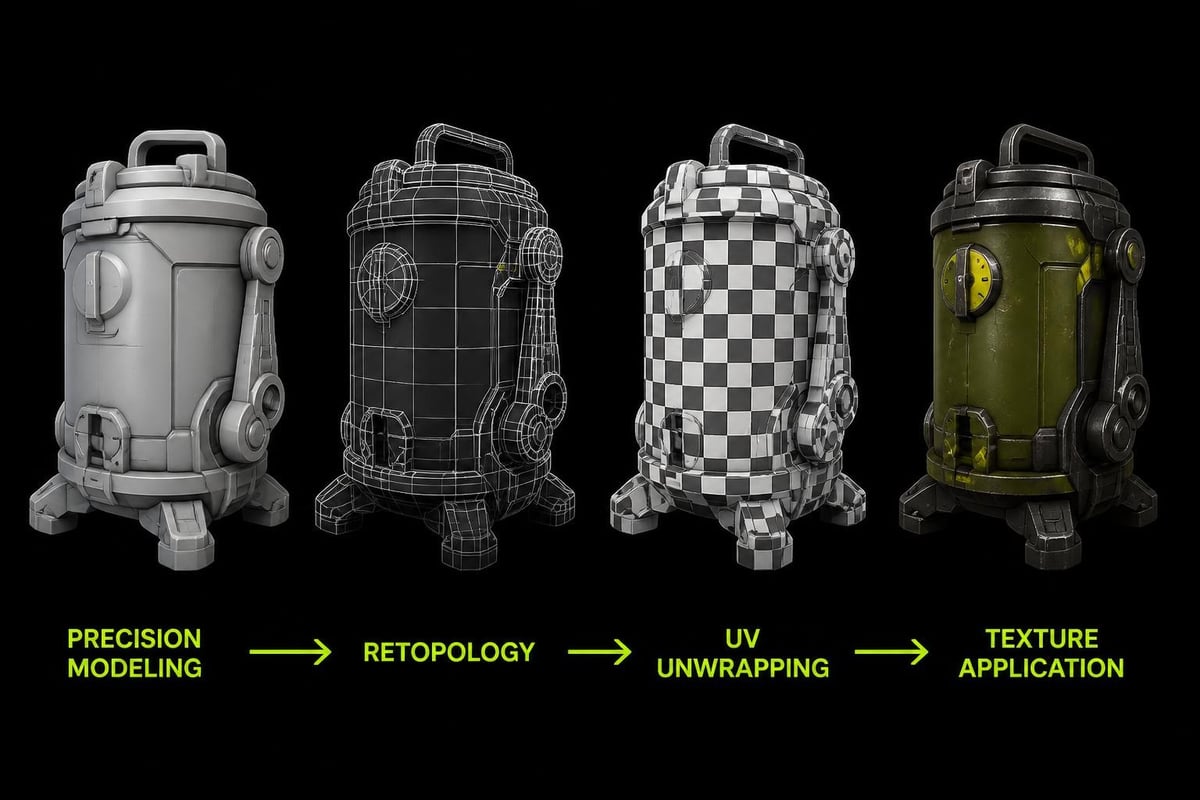
| Topology optimization | Reference geometry | Manual retopology or automated tools |
| UV mapping | Planar projections for technical surfaces | Artistic UV layouts |
| Texturing | Material ID assignment | Shader creation, texture painting |
Artists working on stylized games often need to balance technical precision with optimized geometry. For retopology workflows that convert CAD-precise models into game-ready assets, tools focused on efficient quad mesh creation become essential follow-up steps after initial CAD modeling.
The CADtools extension offers specialized features for architectural visualization and engineering projects, providing 2D drawing capabilities, 3D modeling tools, and scientific visualization options that cater to professionals bridging CAD and artistic 3D work.
Production-Tested Best Practices
After implementing a blender cad plugin across multiple project types, certain patterns emerge for maximizing efficiency and avoiding common pitfalls.
Maintaining Dual-Mode Thinking
Successful CAD-Blender workflows require switching between parametric and direct manipulation mindsets:
Parametric mode priorities:
- Define base profiles with constraints before extrusion
- Establish dimensional relationships early
- Document design intent through constraint choices
- Use variables and formulas for related dimensions
- Plan modification workflows before finalizing geometry
Direct manipulation mode priorities:
- Apply artistic refinements after parametric base is locked
- Use subdivision surfaces for organic transitions
- Add detail geometry that doesn't require dimensional changes
- Implement mesh-based deformation for animation
- Optimize topology for rendering or real-time use
For artists building stylized assets, understanding when to use each mode prevents frustration. Creating base shapes with a blender cad plugin ensures consistent proportions, while manual refinement delivers the artistic character that makes stylized work compelling.
Collaboration and Version Control Strategies
Technical projects involving a blender cad plugin benefit from structured version control beyond typical artistic workflows:
- Separate parametric and mesh components: Store constrained sketches and refined meshes in different collections
- Export intermediate formats: Save STEP files at key milestones for CAD software compatibility
- Document constraint logic: Comment complex sketch relationships for team understanding
- Use non-destructive modifiers: Keep parametric geometry editable through the modifier stack
- Implement file naming schemes: Distinguish CAD-precise versions from artistic iterations
Projects that combine technical modeling with stylized presentation, such as those using palette texturing workflows, need clear organizational systems. Keeping CAD-precise base geometry separate from texture-specific UV layouts prevents accidental modifications that break dimensional accuracy.
Performance Considerations and Optimization
A blender cad plugin introduces computational overhead that differs from standard mesh modeling. Understanding performance implications helps maintain smooth workflows even on complex technical models.
Managing Constraint Solver Performance
Constraint-based sketching requires real-time solving of geometric relationships. Performance degrades with:
- Overconstrained sketches: Too many redundant constraints fighting each other
- Underconstrained sketches: Ambiguous solutions requiring iterative solving
- Complex relationship chains: Long dependency paths that compound calculation time
- High vertex-count profiles: Dense splines or circles with excessive segments
Best practices for maintaining responsiveness:
- Start with minimal constraints and add incrementally
- Use symmetry constraints to reduce solver complexity
- Simplify curves to essential control points
- Lock down fully-defined portions to prevent recalculation
- Work in 2D sketch mode before converting to 3D whenever possible
Balancing Precision and Mesh Density
CAD operations often generate dense geometry that requires optimization for practical use. When working with assets that will eventually use efficient texturing approaches, plan reduction strategies early:
| Geometry Source | Typical Density | Optimization Strategy |
|---|---|---|
| STEP import | Very high | Decimate modifier with planar preservation |
| Constraint sketch extrusion | Medium-high | Control profile segment count |
| Boolean operations | Variable with artifacts | Manual cleanup or remesh |
| Parametric arrays | Multiplied base density | Instance when possible instead of apply |
For game developers and real-time artists, the geometry generated by a blender cad plugin often serves as reference or baking source rather than final in-engine mesh. Planning this separation prevents spending time optimizing geometry that won't ship.
Industry-Specific Applications and Case Studies
Different industries leverage Blender CAD plugins for distinct purposes, each with unique workflow requirements and success metrics.
Architectural Visualization Pipelines
Architectural firms increasingly use Blender for presentation renders while maintaining CAD software for technical documentation. A blender cad plugin enables:
- Importing building information models from Revit or ArchiCAD
- Creating dimensionally accurate furniture and fixture libraries
- Generating site plans with precise measurements
- Producing construction detail visualizations
- Exporting modified geometry back to BIM platforms
The Speckle integration approach exemplifies bidirectional workflows where architectural data flows between platforms without degradation. Design changes in CAD software automatically sync to Blender scenes, keeping presentations current with engineering decisions.
Product Design and Manufacturing
Industrial designers use Blender for both concept exploration and technical documentation. CAD plugin capabilities support:
- Creating parts with manufacturing tolerances
- Generating assembly instructions with exploded views
- Producing photorealistic product renders from engineering models
- Maintaining version control between design iterations
- Exporting machining-ready geometry in STEP or IGES formats
Research into automated CAD assembly workflows demonstrates how parametric plugins might eventually automate repetitive product configuration tasks, generating variations from base designs with minimal manual intervention.
Scientific Visualization and Technical Illustration
Researchers and technical illustrators benefit from the precision a blender cad plugin provides when visualizing equipment, experimental setups, or molecular structures:
- Exact scale representations of laboratory equipment
- Cutaway views showing internal component relationships
- Animated assembly sequences with precise timing
- Cross-sectional diagrams maintaining dimensional accuracy
- Publication-quality renders with measurement annotations
The GenPluSSS plugin for subsurface scattering demonstrates specialized technical visualization capabilities that extend beyond basic CAD functionality, using genetic algorithms to accurately represent material properties in scientific contexts.
Extending Plugin Functionality Through Python
Advanced users can enhance any blender cad plugin through custom Python scripting, automating repetitive tasks and creating project-specific tools.
Common Automation Opportunities
Batch dimension modification:
# Example workflow concept
- Select constrained sketches matching naming pattern
- Read dimension values from spreadsheet
- Apply values through constraint parameters
- Regenerate affected geometry
- Export updated models to project folder
Custom constraint types:
- Define industry-specific geometric relationships
- Create constraint macros for repeated patterns
- Build validation tools checking design rules
- Generate reports on model compliance with standards
Pipeline integration scripts:
- Automatic export to multiple CAD formats
- Metadata injection for asset management systems
- Version tagging and backup automation
- Render preset application based on geometry type
For studios building production tools like those found at Saved Pixel, understanding Blender's Python API enables creating custom workflows that combine CAD precision with artistic efficiency. While a general-purpose blender cad plugin handles core functionality, custom scripts bridge the gap between technical requirements and production realities.
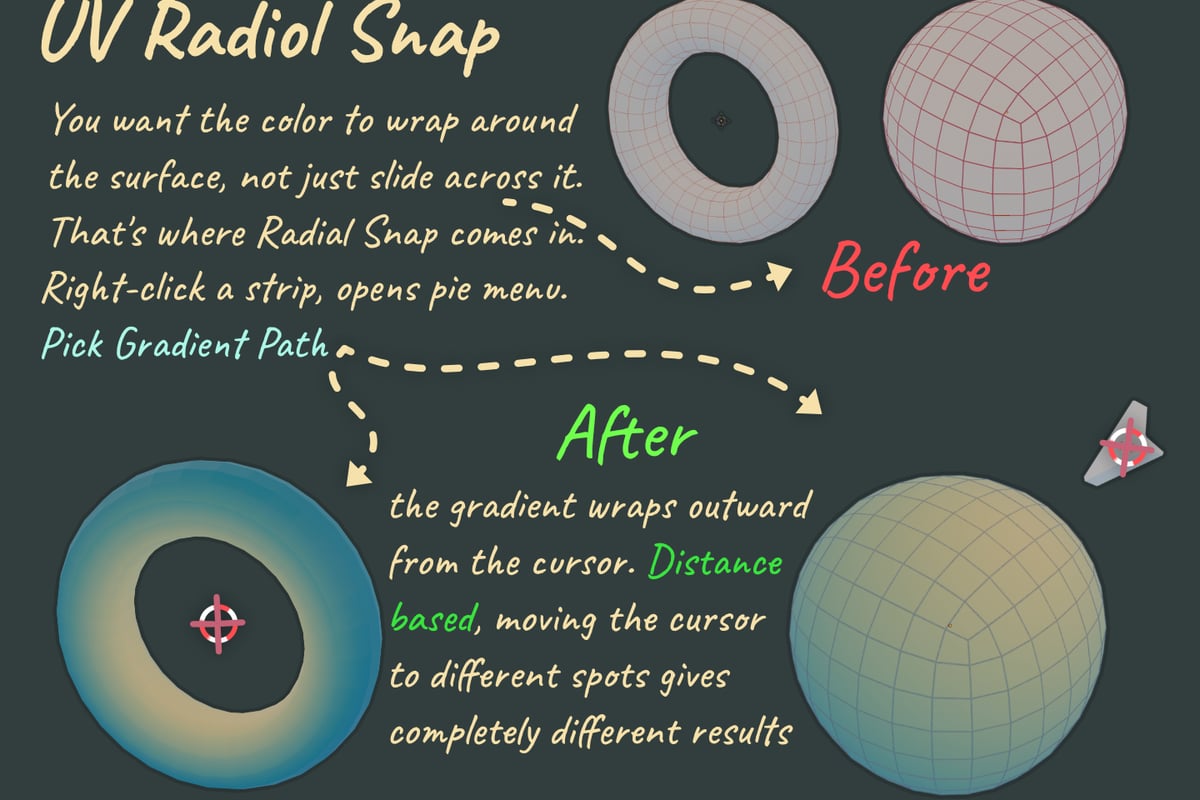
When working on stylized game assets that require both precise base geometry and optimized texturing, combining CAD tools with solutions like Palette Grid can streamline the entire pipeline. Palette Grid enables artists to create and edit gradient palette textures directly in Blender without external tools, maintaining the efficiency that CAD-based base modeling establishes. This integrated approach reduces context switching and keeps artists focused on creative decisions rather than technical overhead.
Interfacing with External CAD APIs
Some workflows require direct communication with external CAD software rather than file-based exchange. Python libraries enable:
- Direct geometry transfer through software APIs
- Real-time synchronization of design changes
- Automated validation against CAD software's internal checks
- Bidirectional parameter linking for live updates
This approach suits large organizations with established CAD infrastructure who want Blender's rendering and artistic capabilities without abandoning existing technical toolchains.
Future Developments in CAD-Blender Integration
The landscape of Blender CAD plugins continues evolving rapidly as both user demand and underlying technology advance. Understanding emerging trends helps plan future-proof workflows.
Geometry Kernels and Native Parametric Support
Current Blender CAD plugins work around Blender's mesh-based architecture. Future development may include:
- Native NURBS support improvements: Better handling of precise mathematical surfaces
- Integrated constraint solvers: Core Blender functionality rather than addon-based
- History-based modeling: Parametric modification stack similar to traditional CAD
- Feature libraries: Standardized operations like holes, fillets, and bosses
The Blender development roadmap for 2026 and beyond includes explorations of these capabilities, though full CAD-level parametric modeling remains a significant architectural challenge.
Cloud-Based Collaborative CAD Workflows
Multi-user parametric modeling represents the next frontier, where teams simultaneously edit constrained geometry with real-time synchronization:
- Version control systems designed for parametric models
- Conflict resolution for simultaneous constraint edits
- Cloud rendering integration for immediate feedback
- Cross-platform collaboration between desktop and web interfaces
Projects like Speckle demonstrate the foundation for these workflows, and the next generation of blender cad plugin tools will likely emphasize collaboration over individual modeling.
AI-Driven Design Assistance
Machine learning integration promises to automate portions of CAD modeling that currently require expert knowledge:
- Constraint suggestion based on design intent recognition
- Automatic tolerance calculation for manufacturing methods
- Design optimization for structural or aesthetic criteria
- Natural language to parametric model generation
While experimental in 2026, these capabilities will gradually integrate into production-ready tools as research like BlenderLLM matures into practical implementations.
Choosing the Right Plugin for Your Production Needs
Selecting the appropriate blender cad plugin requires matching tool capabilities to project requirements rather than choosing based on features alone.
Decision Framework
| Project Characteristic | Recommended Plugin Type | Key Features to Prioritize |
|---|---|---|
| Primarily 2D technical drawings | CAD Sketcher or CADtools | Constraint solver, dimension tools |
| Multi-software pipeline | Speckle integration | Format compatibility, metadata preservation |
| Manufacturing file import | Import CAD Model | STEP/IGES support, mesh quality control |
| Precision transformations | blender_cad_transforms | Snap functionality, axis constraints |
| Architectural visualization | Speckle + CADtools | BIM integration, 2D documentation |
For game developers working on technically accurate assets, the decision often involves multiple plugins serving different pipeline stages. A blender cad plugin handles precision base geometry, while specialized tools address retopology, UV mapping, and texturing optimization.
Evaluating Plugin Maturity and Support
Beyond features, practical considerations determine production viability:
Development activity indicators:
- Recent commit history on open-source projects
- Active issue response and bug fix cadence
- Documentation completeness and currency
- Community size and engagement level
- Commercial support availability for paid tools
The best Blender plugins for production work share characteristics of active development, clear documentation, and responsive support channels. Evaluating these factors prevents adopting tools that will become unmaintained liabilities.
Testing and Validation Process
Before committing to a blender cad plugin for production, establish a structured evaluation:
- Benchmark typical tasks: Model representative geometry from real projects
- Measure performance impact: Compare viewport responsiveness and render times
- Test file exchange: Verify import/export accuracy with partner software
- Validate precision: Check dimensional accuracy against known measurements
- Assess learning curve: Estimate training time for team adoption
This methodical approach prevents discovering critical limitations after workflow integration.
The evolution of Blender CAD plugins has transformed what's possible for technical modeling within an artistic 3D environment, enabling precision workflows that previously required dedicated CAD software. By understanding the strengths and limitations of different plugin approaches, artists and engineers can build hybrid pipelines that leverage both parametric accuracy and creative flexibility. Whether you're importing manufacturing files, creating architectural visualizations, or developing game assets with technical requirements, the right combination of tools streamlines production while maintaining quality standards. Saved Pixel builds addons from real production problems, creating tools like Palette Grid for efficient stylized texturing and developing RetopoSketch for fast quad mesh retopology, helping artists solve practical workflow challenges with software designed by working professionals who understand production demands.