
 Get Palette Grid
Finding the best Blender plugin for your workflow means understanding how different tools solve real production problems. Blender's extensibility through Python-based addons has created an ecosystem where specialized tools address everything from hard-surface modeling to UV mapping optimization. The challenge isn't finding plugins-it's identifying which ones deliver measurable improvements to your daily work. With Blender's continuous evolution, including major updates like the Geometry Nodes-based physics system in version 5.2 LTS, the best plugins adapt alongside core feature development while filling gaps that general-purpose software can't efficiently address.
What Makes a Plugin the Best Choice for Production Work
The best Blender plugin isn't determined by feature count or popularity alone. Production-ready tools distinguish themselves through consistent performance, intuitive integration with existing workflows, and solutions to time-consuming tasks that Blender's native toolset handles inefficiently.
Performance Under Real-World Conditions
Professional work demands plugins that maintain responsiveness with complex scenes. A modeling addon might showcase impressive capabilities in demo videos, yet struggle when processing high-polygon meshes or managing large asset libraries. The best options undergo testing in actual production environments rather than controlled demonstrations.
Key performance indicators include:
- Real-time viewport feedback during operations
- Minimal impact on file size and save times
- Stable behavior with modifier stacks and procedural workflows
- Compatibility with network rendering and farm pipelines
Testing plugins with your typical scene complexity reveals whether promotional claims match practical results. A tool that adds three seconds to every operation compounds into hours of lost productivity over a project timeline.
Integration With Existing Workflows
Superior plugins feel like natural extensions of Blender rather than separate applications bolted onto the interface. They respect established keyboard shortcuts, match Blender's design language, and work alongside other addons without conflicts. Comprehensive guides on Blender plugins demonstrate how the most valuable tools enhance rather than replace core functionality.
The difference shows in daily use. Native-feeling plugins require minimal context switching, while poorly integrated tools force artists to abandon familiar patterns and learn entirely new interaction models.
Categories of Essential Blender Plugins
Different production stages benefit from specialized tool categories. Understanding these divisions helps identify where plugins deliver maximum value versus where native tools suffice.
Modeling and Hard Surface Tools
Hard-surface modeling plugins accelerate creation of mechanical objects, architecture, and manufactured items. BoxCutter and similar tools provide boolean-based workflows with real-time preview and non-destructive editing capabilities. These plugins transform what would be hours of manual edge manipulation into minutes of intuitive operations.
The best modeling plugins offer:
- Non-destructive workflows that preserve edit history
- Procedural generation for repetitive elements
- Precision controls for technical modeling requirements
- Batch operations for managing multiple objects simultaneously
Traditional polygon modeling remains essential for organic forms, but hard-surface plugins handle the repetitive precision work that dominates product visualization, game asset creation, and architectural visualization.
UV Mapping and Texturing Solutions
UV unwrapping represents one of Blender's most time-intensive processes. UV Packmaster 3 and similar plugins optimize packing density, reduce wasted texture space, and automate island arrangement. For stylized workflows requiring specific texturing approaches, specialized tools become invaluable.
| Plugin Category | Time Saved | Best Use Case |
|---|---|---|
| Auto UV packers | 40-60% | Game assets, production models |
| Gradient palette tools | 50-70% | Stylized art, toon shading |
| Procedural generators | 30-50% | Architectural, natural surfaces |
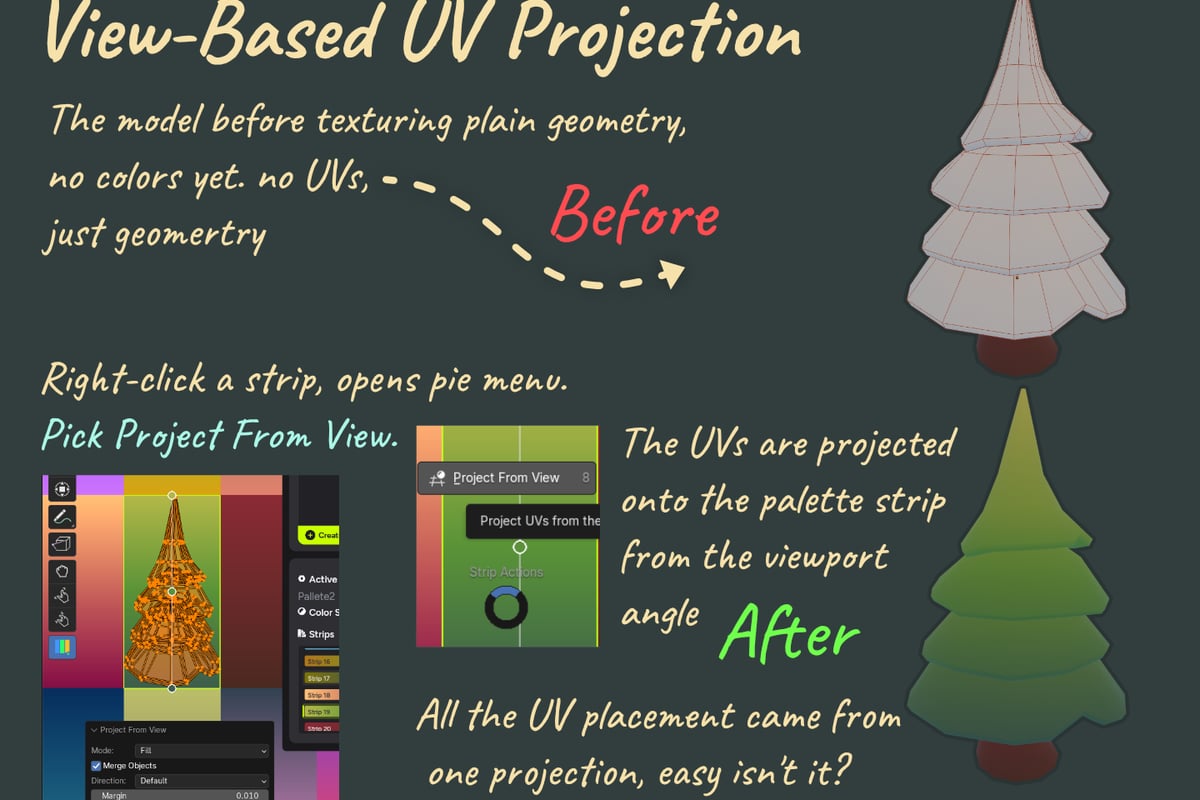
Artists working on stylized low-poly projects particularly benefit from texturing plugins that streamline palette-based workflows. Traditional UV editing works for photorealistic projects, but stylized art often requires specialized approaches that generic tools don't efficiently support.
For teams focused on palette texturing workflows, tools that enable direct palette creation and editing inside Blender eliminate the export-import cycle that disrupts creative momentum. Palette Grid handles this specific workflow, letting artists build and edit gradient palette textures without switching to external editors-addressing a production bottleneck that standard Blender tools don't resolve. The approach aligns with strategies for reducing draw calls and texture memory in stylized game development.
Retopology and Mesh Optimization
Retopology transforms high-resolution sculpts into production-ready assets. While Blender includes basic retopology tools, specialized plugins dramatically improve speed and quality. Understanding retopology fundamentals provides context for evaluating which plugin features matter most.
Traditional retopology involves placing vertices one at a time, a tedious process for complex organic models. Modern plugins introduce alternative approaches-stroke-based topology creation, automatic quad flow generation, and vector-based edge control. These methods reduce retopology time from hours to minutes for typical character models.
The best retopology plugins prioritize:
- Clean quad topology with proper edge flow
- Editable construction allowing refinement after initial creation
- Performance with high-poly source meshes above 10 million polygons
- Preservation of details in critical areas like faces and joints
AI Integration in Modern Blender Plugins
Artificial intelligence has entered the Blender plugin ecosystem with tools that automate tedious tasks and interpret natural language commands. AI tools for Blender in 2026 include auto-rigging systems, texture generators, and even natural-language interfaces for tool operation.
Practical AI Applications
AI-powered plugins excel at pattern recognition and repetitive decision-making. Auto-rigging tools like Mixamo and AccuRig analyze mesh topology to place bones and create weight painting automatically. These systems save hours on character setup, though manual refinement remains necessary for production-quality results.
Current AI plugin strengths:
- Character rigging and weight painting
- Texture generation from text prompts
- Smart UV unwrapping based on geometry analysis
- Natural language command interpretation
Current limitations:
- Generic results requiring manual refinement
- Inconsistent quality across different model types
- High computational requirements
- Limited artistic control over AI decisions
The integration of AI in Blender workflows works best when treating AI as an assistant for initial passes rather than a replacement for artistic judgment. Generated results provide starting points that artists refine to meet project requirements.
Evaluating AI Plugin Claims
Marketing for AI plugins often overstates capabilities. Testing reveals that many "AI-powered" tools apply conventional algorithms with minimal machine learning involvement. The best approach involves trials with your specific asset types before committing to subscriptions or purchases.
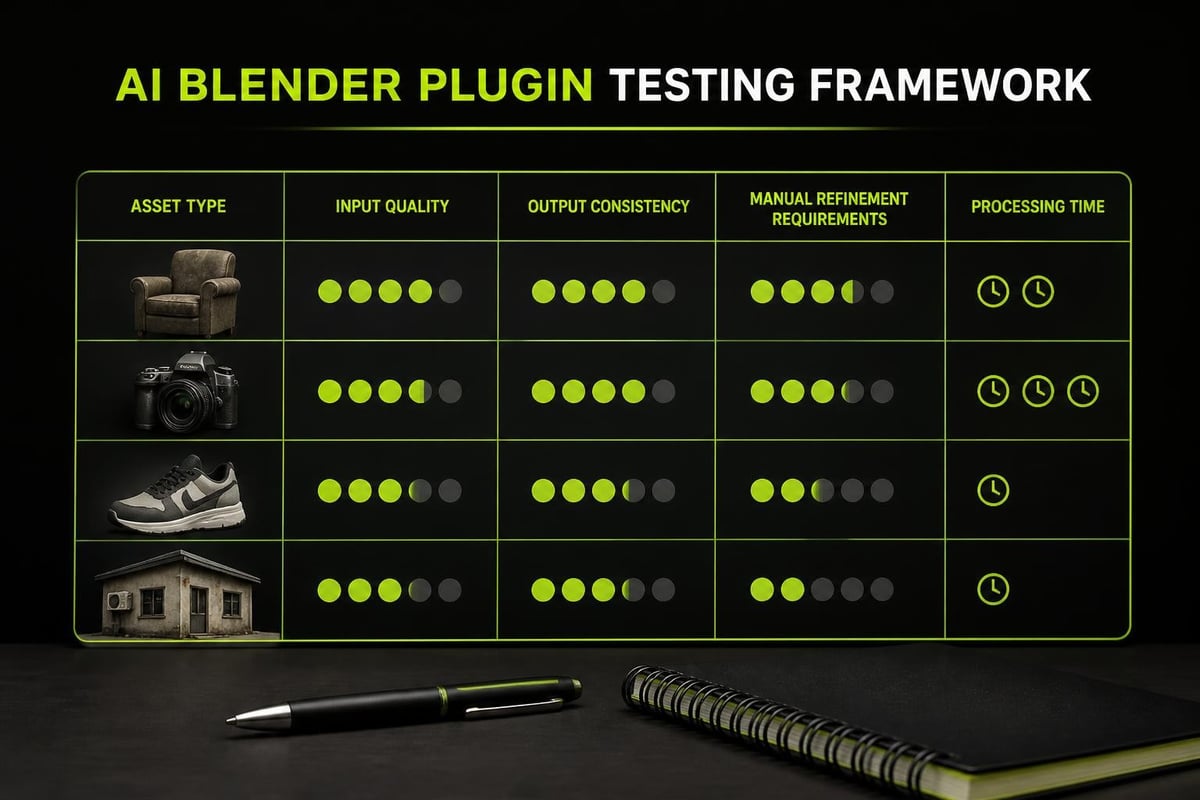
Genuine AI innovations like AI plugins ranked by quality and integration demonstrate measurable advantages in specific tasks. Skepticism toward general-purpose AI claims protects against disappointing purchases while remaining open to legitimate advancements.
Asset Management and Pipeline Tools
Large projects require organizational tools beyond Blender's native asset browser. Plugins like Cargo provide database-driven asset management with preview generation, tagging systems, and batch operations. These tools become essential when managing libraries exceeding hundreds of assets.
Critical Management Features
Professional asset management plugins handle version control, dependency tracking, and team collaboration. They integrate with project file structures rather than requiring artists to reorganize existing libraries.
Essential capabilities include:
- Thumbnail generation for quick visual identification
- Metadata and tag systems for searchability
- Batch renaming and organization tools
- Integration with external renderers and exporters
Studios working across multiple projects benefit from centralized asset libraries that plugins help maintain. The time investment in setup pays dividends through faster asset retrieval and reduced duplication.
Specialized Domain Plugins
Certain industries require highly specialized Blender functionality. Scientific visualization, for example, benefits from plugins like AstroBlend, which integrates astrophysical data visualization directly into Blender's rendering pipeline. These niche tools demonstrate Blender's flexibility beyond traditional 3D art and animation.
Industry-Specific Solutions
Architectural visualization demands tools for parametric modeling, material libraries with manufacturer specifications, and lighting analysis. Game development requires export optimizers, LOD generators, and real-time material converters. Each domain has evolved specialized plugin ecosystems.
| Industry | Plugin Focus | Critical Features |
|---|---|---|
| Game Development | Performance optimization | LOD generation, draw call reduction |
| Architecture | Parametric modeling | Building component libraries, standards compliance |
| Product Visualization | Material accuracy | PBR workflows, measurement tools |
| Scientific Visualization | Data integration | Dataset importers, analytical rendering |
The best Blender plugin for one industry may prove irrelevant for another. Domain expertise matters more than general popularity when selecting specialized tools.
Free vs. Paid Plugin Considerations
Blender's open-source nature fosters a substantial free plugin community. High-quality free options exist across most categories, yet paid plugins often provide superior support, documentation, and update reliability.
Making the Investment Decision
Free plugins suit exploration and learning, but production work benefits from paid tools' accountability. When revenue depends on meeting deadlines, the support and stability of paid plugins justify their cost.
Factors favoring free plugins:
- Learning new techniques without financial commitment
- Simple, single-purpose tools
- Community-driven development with transparent roadmaps
- Projects with flexible timelines
Factors favoring paid plugins:
- Mission-critical workflows requiring guaranteed support
- Complex tools with steep learning curves needing documentation
- Regular updates matching Blender version releases
- Professional accountability and bug fixes
The comprehensive overview of Blender plugins shows both free and paid options competing on quality. Price doesn't automatically indicate superiority, but it does establish different support expectations.
Installation and Compatibility Management
The best Blender plugin becomes useless if installation fails or conflicts arise. Modern plugins use Blender's extension platform for streamlined installation, but older addons require manual file management.
Avoiding Common Installation Issues
Plugin conflicts typically stem from overlapping keyboard shortcuts or competing modifications to the same Blender systems. Testing new plugins in isolation before adding them to production environments prevents disruptions.
Installation best practices:
- Read compatibility requirements for Blender version and dependencies
- Install one plugin at a time to identify conflict sources
- Enable plugins in test files before production scenes
- Document working configurations for troubleshooting
- Maintain backup Blender installations for critical projects
Some plugins modify Blender's core data structures in ways that make files incompatible with standard Blender versions. Understanding these dependencies prevents situations where files become locked to specific plugin versions.
Performance Optimization With Multiple Plugins
Running multiple plugins simultaneously impacts Blender's performance. Each addon consumes memory and processing cycles, with cumulative effects that aren't always obvious until scenes become complex.
Monitoring Plugin Impact
Blender's system console reveals plugin-related warnings and errors. Monitoring this output during typical work identifies problematic plugins before they cause crashes or data loss.
Artists using tools built from production experience benefit from developers who understand performance implications. Tools designed by working professionals tend to respect computational budgets rather than implementing features without regard for resource costs.
Strategic plugin selection means balancing capability against overhead. Five focused plugins typically outperform twenty general-purpose tools attempting similar tasks. The best Blender plugin collection remains small and specialized rather than comprehensive and bloated.
Evaluating Plugin Developers and Support
Developer reputation predicts long-term plugin value. Established developers with track records of updates and responsive support provide better investments than one-time releases from unknown creators.
Research Before Purchase
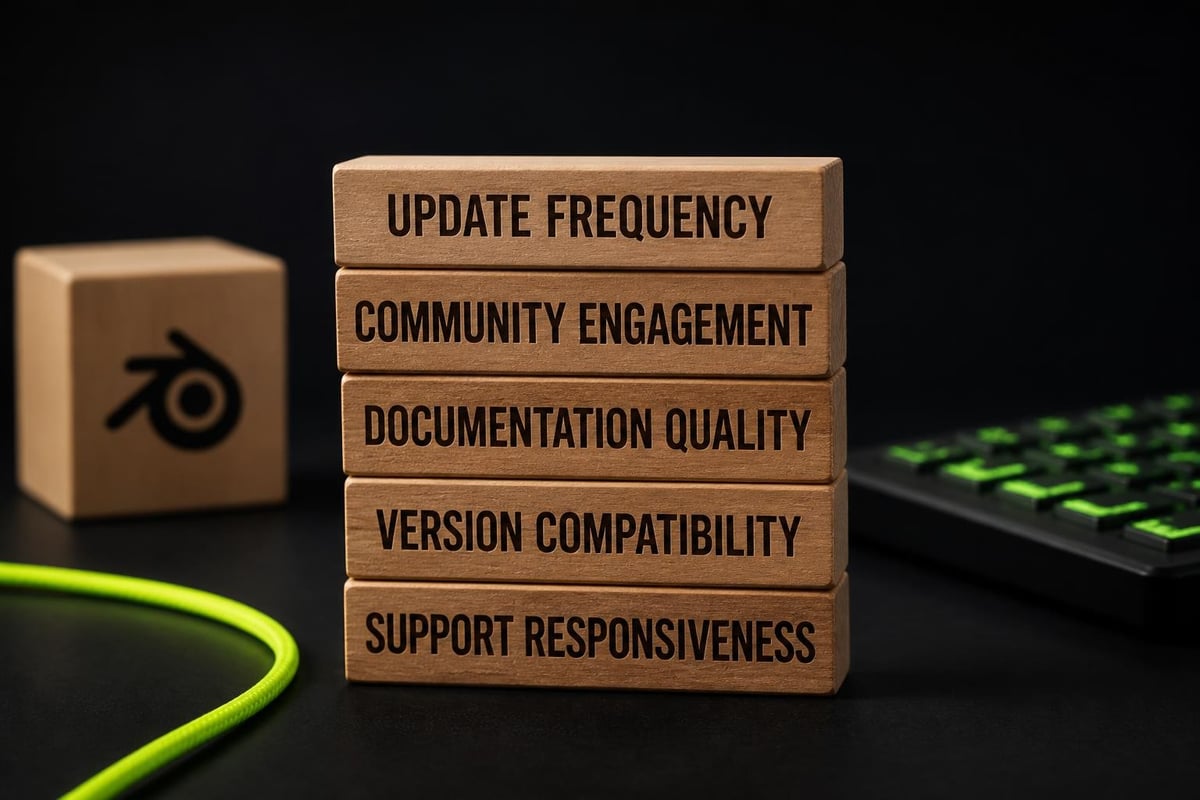
Checking developer history, update frequency, and community feedback reveals whether plugins receive ongoing development or represent abandoned projects. Social media presence, documentation quality, and response to bug reports indicate commitment levels.
Red flags in plugin evaluation:
- No updates in six months or longer
- Unanswered support requests in forums
- Missing or outdated documentation
- Promises of features without delivery timelines
- Incompatibility with recent Blender versions
Following development updates from trusted developers keeps you informed about new features and compatibility changes. Transparent development processes build confidence in long-term tool viability.
Testing Methodology for Plugin Selection
Systematic testing reveals whether plugins match promotional claims. Trial periods and demo versions allow hands-on evaluation with your specific workflows before financial commitment.
Creating Effective Test Scenarios
Generic tests with simple scenes don't reveal performance issues or workflow friction. Testing with actual project files under realistic conditions exposes problems that only emerge during production work.
Structured testing approach:
- Define specific problems the plugin should solve
- Create test files matching typical project complexity
- Time operations to measure actual speed improvements
- Test integration with existing plugins and workflows
- Evaluate learning curve against productivity gains
- Verify compatibility with rendering and export pipelines
Recording test results allows objective comparison between alternatives. Subjective impressions matter, but measurable improvements in task completion times provide concrete decision criteria.
Documentation and Learning Resources
The best Blender plugin includes comprehensive documentation, video tutorials, and example files. Tools requiring reverse-engineering through experimentation waste time and rarely achieve full utilization.
Documentation Standards
Professional plugin documentation covers installation, basic operations, advanced techniques, and troubleshooting. It includes keyboard shortcut references, parameter explanations, and workflow examples.
Quality documentation features:
- Searchable format for quick reference
- Visual demonstrations with screenshots or videos
- Version-specific information noting feature changes
- Practical examples using realistic scenarios
- Troubleshooting sections for common issues
Developers who invest in documentation demonstrate commitment to user success. Exploring comprehensive guides helps understand how well-documented tools accelerate learning and adoption.
Selecting the best Blender plugin requires balancing features against workflow integration, performance, and long-term support. Tools built from actual production experience solve real problems rather than chasing trends or adding features for their own sake. Whether you need specialized texturing workflows, faster retopology, or streamlined asset management, Saved Pixel develops plugins that address genuine bottlenecks faced by working 3D artists and game developers. Explore production-tested tools designed to improve your daily work rather than complicate it.