
 Get Palette Grid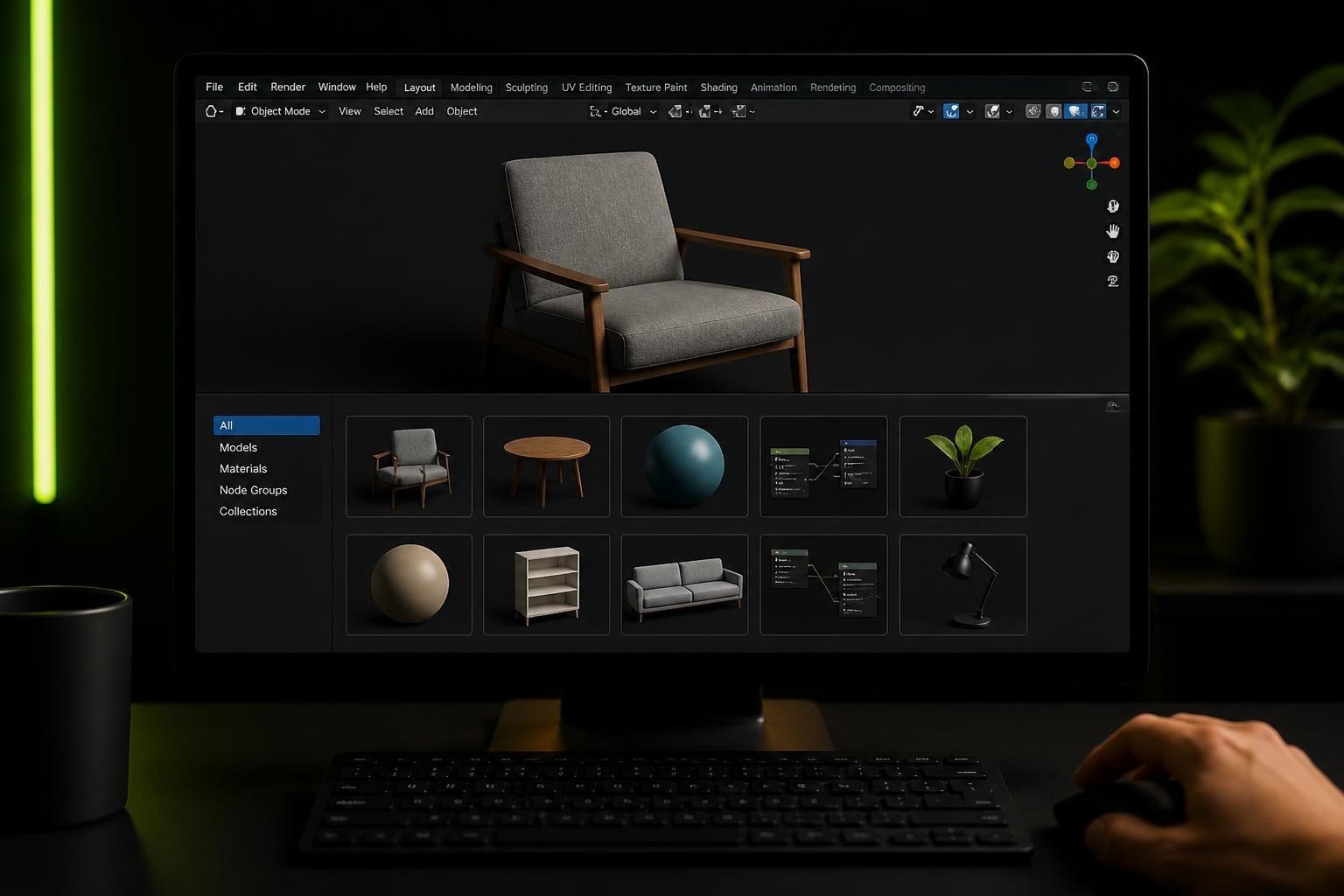
Managing reusable 3D content has become critical for modern production workflows, and blender asset libraries have evolved into a powerful system for organizing everything from materials to full character rigs. Whether you're building stylized game environments or creating complex animations, understanding how to leverage asset libraries can dramatically reduce repetitive work and keep your project files clean. This comprehensive guide explores how to set up, organize, and maximize blender asset libraries for production-ready workflows in 2026.
Understanding Blender Asset Libraries
Blender asset libraries represent a fundamental shift in how artists manage reusable content. Instead of digging through multiple .blend files or relying on external tools, the Asset Browser provides centralized access to materials, objects, collections, node groups, and more.
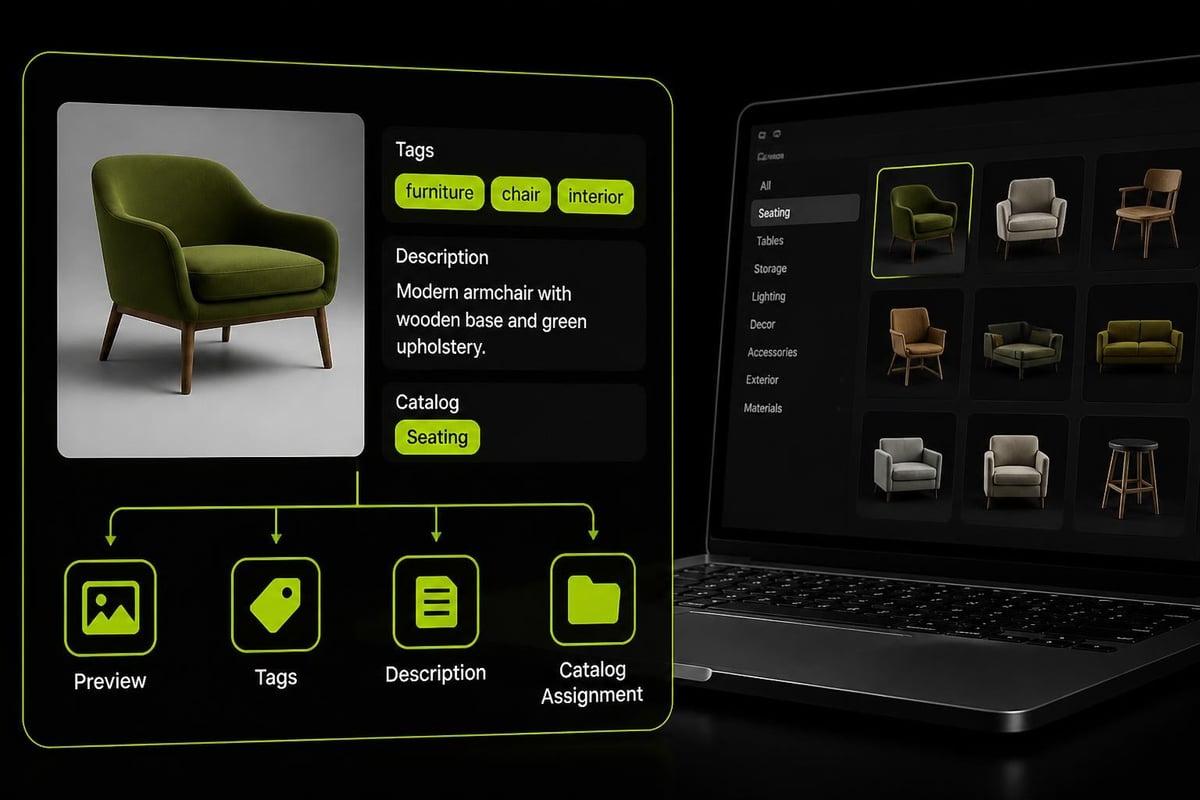
The system works by marking items as assets within blend files, then cataloging those files into searchable libraries. Each asset can include custom metadata, previews, and tags that make retrieval fast and intuitive. This architecture means your most-used materials, character bases, or environment pieces are always available without file juggling.
Core Asset Types
Blender supports several asset categories that cover most production needs:
- Objects and Collections: Complete models, prop sets, or modular building pieces
- Materials: Shader networks ready for immediate application
- Node Groups: Reusable geometry nodes, shader nodes, or compositor setups
- Poses and Actions: Animation clips and character poses
- Brushes and Textures: Sculpting brushes, texture paint tools, and image files
What makes assets different from regular content? Assets carry metadata, generate automatic previews, and integrate with Blender's search and tagging system. A regular material becomes an asset when you mark it explicitly and add identifying information.
Setting Up Your First Asset Library
Creating blender asset libraries starts with designating where Blender should look for asset files. The Asset Browser recognizes two library types: the Current File library (temporary, session-based assets) and User Libraries (persistent collections stored on disk).
Creating a User Library
Navigate to Edit > Preferences > File Paths and locate the Asset Libraries section. Click the plus icon to add a new library path, then point it to a folder where you'll store asset blend files. Name this library something descriptive like "Production Assets" or "Character Library."
Best practice: Store asset libraries outside project folders. Keep them in a dedicated location like Documents/BlenderAssets/ so they remain accessible across all projects. This separation prevents assets from getting buried in project-specific directories.
Once configured, open the Asset Browser (Shift + F11 or Editor Type > Asset Browser). Your new library appears in the library dropdown. At first it's empty, but any blend file you place in that folder path will be scanned for marked assets.
Marking Items as Assets
- Create or select an object, material, or node group you want to reuse
- Open the Asset Browser and ensure "Current File" library is selected
- Drag the item from the Outliner into the Asset Browser, or click the shield icon in the properties panel
- Add tags, descriptions, and preview customization as needed
- Save the file to your designated asset library folder
The asset now appears in your User Library with its metadata. If you want to update the preview, you can generate a new one by adjusting the viewport angle and clicking "Generate Preview" in the asset details panel.
| Library Type | Storage Location | Use Case |
|---|---|---|
| Current File | Session memory | Temporary organization within active project |
| User Library | Disk folder path | Persistent cross-project asset collections |
| Custom Library | Network/cloud path | Team collaboration and shared resources |
Organizing Assets with Catalogs
Without structure, even small blender asset libraries become unwieldy. Catalogs provide hierarchical organization similar to folder systems, letting you group related assets logically.
Creating Catalog Hierarchies
Within the Asset Browser, click the catalog dropdown and select "New Catalog." Name it using forward slashes to create nested categories: Environment/Buildings/Medieval or Materials/Stylized/Stone. This creates a tree structure that scales with your library size.
Think about organization from a retrieval perspective. When you need a material three months from now, what would you search for? Structure catalogs around production needs rather than technical specifications.
Example catalog structure for game asset production:
- Characters/Humanoid/Player
- Characters/Humanoid/NPCs
- Characters/Creatures
- Environment/Natural/Vegetation
- Environment/Natural/Terrain
- Environment/Props/Furniture
- Materials/Organic
- Materials/HardSurface
- NodeGroups/Procedural
- NodeGroups/Utility
Each catalog can contain assets from multiple blend files. One material file might contribute assets to several catalogs based on their tags and assignments.
Asset catalog hierarchy showing how stylized materials, character components, and environment pieces organize through nested categories
Tagging Strategies
Tags complement catalogs by adding searchable metadata. While catalogs provide structural organization, tags enable cross-cutting searches. A "weathered" tag might apply to materials across stone, wood, and metal catalogs.
Use tags consistently across your library. Establish a controlled vocabulary early-decide whether you'll use "lowpoly" or "low_poly" and stick with it. Tag saturation helps: add 5-10 relevant tags per asset to maximize discoverability.
For teams sharing blender asset libraries, document your tagging conventions in a shared style guide. This prevents the chaos of duplicate or contradictory tags as the library grows. Consider tags for:
- Style descriptors (stylized, realistic, hand-painted)
- Quality indicators (production-ready, WIP, placeholder)
- Technical specifications (optimized, high-poly, baked)
- Color themes (warm, cool, monochrome)
- Seasonal or environmental contexts (winter, desert, urban)
Advanced Library Management
As your blender asset libraries expand, advanced techniques keep them performant and maintainable. Understanding preview generation, linking versus appending, and library blending can prevent common workflow bottlenecks.
Preview Optimization
Asset previews render at 128x128 pixels by default. For material assets, Blender automatically applies them to a preview sphere, but you can customize preview geometry. Select an asset, open its details panel, and change the preview type to cube, plane, or even custom geometry.
Preview generation tips:
- Use consistent lighting across previews for visual coherence
- Set viewport shading to Material Preview or Rendered for accurate material representation
- Custom preview geometry helps-show fabric materials on draped cloth, not spheres
- Generate previews in batches by selecting multiple assets and using "Generate Previews" from the context menu
Large libraries with hundreds of assets can experience slower load times due to preview processing. Store previews efficiently by keeping preview blend files lightweight-avoid heavy geometry in asset files meant purely for library storage.
Linking vs. Appending Best Practices
When you drag an asset into your scene, Blender offers two options: Link creates a reference to the original asset file, while Append copies the asset data into your current file. Each approach serves different production needs.
Linking maintains a connection to the source file. Changes to the original asset propagate to all linked instances across projects. This workflow excels for materials and node groups that might need global updates. If you refine a grass material and want that improvement in ten different scene files, linking delivers automatic propagation.
Appending creates independence. The asset becomes part of your current file with no external dependencies. This approach works well for objects you'll customize per-scene or when you need to ensure file portability without tracking dependencies.
| Approach | Pros | Cons | Best For |
|---|---|---|---|
| Linking | Shared updates, smaller files | External dependencies | Materials, node groups, base meshes |
| Appending | Self-contained, customizable | No automatic updates | Objects for modification, final assets |
Production pipelines often combine both methods. Link materials and utility nodes that benefit from centralized updates, but append character models or environment pieces that will receive scene-specific modifications.
Production Workflows with Asset Libraries
Translating blender asset libraries into actual production efficiency requires workflow integration. How you structure asset creation, update propagation, and cross-project reuse determines whether libraries become productivity multipliers or maintenance burdens.
Building Modular Asset Collections
Modular asset design amplifies library value. Instead of creating complete, monolithic scenes, break content into reusable components. A medieval building becomes separate wall, roof, door, and window assets that recombine into variations.
This modularity directly benefits workflows like stylized game asset texturing, where consistent material application across multiple objects maintains visual coherence. When your environment pieces share catalog-organized materials, lighting and rendering stay predictable.
For material-heavy workflows, consider how palette textures versus traditional approaches affect your asset library structure. Palette-based materials reduce draw calls and memory usage, making them ideal candidates for library materials in game production pipelines.
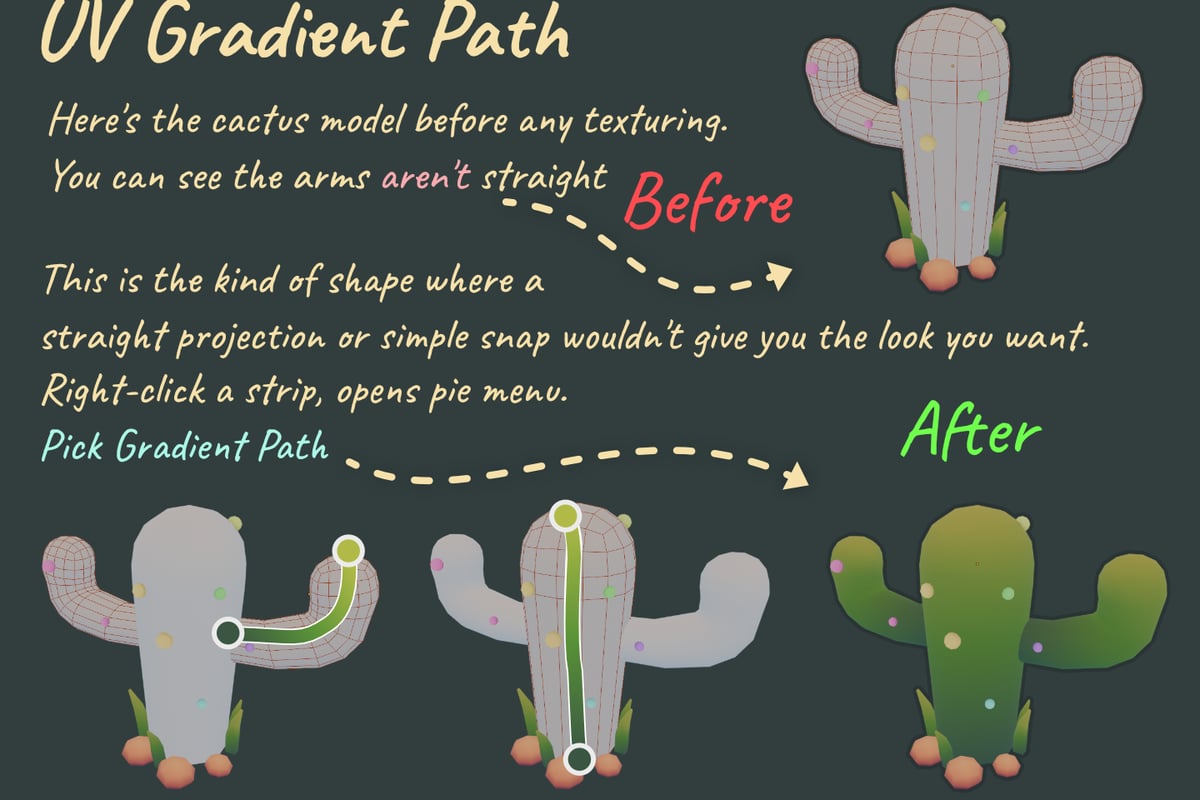
Palette Grid streamlines this exact workflow for stylized artists. Instead of exporting textures to external editors and re-importing them, you can build gradient palette textures directly in Blender with instant preview on your meshes. This eliminates the export/import cycle that traditionally interrupts the asset creation process, making it faster to populate blender asset libraries with production-ready materials that share consistent palette-based texturing.
Version Control for Asset Libraries
Asset libraries evolve constantly. Materials get refined, models receive optimization passes, and node groups gain new parameters. Without version control, tracking these changes becomes impossible.
Consider these versioning strategies:
- Date-stamped duplicates: Save
stone_material_2026_08.blendwhen making significant revisions - Git-based tracking: Use Git LFS for blend files in team environments
- Catalog versions: Create separate catalogs like
Materials/ProductionandMaterials/Experimental - Metadata versioning: Include version numbers in asset descriptions
For team collaboration, cloud-synced folders like Dropbox or Google Drive can host shared libraries, though direct file locking isn't available. Establish clear ownership and update schedules to prevent conflicts.
Community and Commercial Asset Libraries
Beyond custom libraries, the Blender ecosystem offers extensive pre-built collections. These resources accelerate production while demonstrating organizational best practices you can adopt.
Blendkit Integration
Blendkit provides over 140,000 community assets directly through the Asset Browser. After installing the free addon, materials, models, and scenes become searchable without leaving Blender. The integration demonstrates effective tagging and preview systems at scale.
While Blendkit excels for rapid prototyping and concept development, production work often requires custom assets. Use community libraries as references for organizing your own collections-observe how successful assets are tagged, cataloged, and previewed.
Specialized Asset Platforms
Commercial platforms like iMeshh offer curated asset collections focused on specific industries. Their architectural visualization assets show how professional studios organize production-ready libraries with detailed metadata and quality standards.
These examples reveal patterns worth emulating in personal libraries: consistent naming conventions, thorough tagging, high-quality previews, and logical catalog structures. Study how professional asset libraries present their content to understand what makes assets discoverable and usable.
The recent Blender 5.2 updates include asset library enhancements that improve performance and search capabilities, making both custom and commercial libraries more responsive in production contexts.
Technical Deep Dive: Asset Library Architecture
Understanding how Blender implements asset libraries helps troubleshoot issues and optimize performance. The system relies on blend file indexing, metadata storage, and preview caching that operate behind the Asset Browser interface.
File Structure and Indexing
When you designate a folder as an asset library, Blender scans all blend files in that directory (and subdirectories if enabled) for assets. Each marked asset's metadata gets indexed in memory for fast searching.
This indexing happens on library load. Large libraries with thousands of assets might experience initial load delays as Blender builds the search index. Once loaded, the index remains in memory for that session, making subsequent searches fast.
Metadata storage lives within blend files themselves. When you mark an item as an asset and add tags or descriptions, that information saves with the file. The blender_assets.cats.txt file in library folders stores catalog definitions separately, allowing catalog restructuring without modifying asset files.
Preview Cache Management
Previews generate when assets are marked and save in two locations: embedded in the asset's blend file and in Blender's thumbnail cache. The cache enables fast preview display without opening every blend file.
On Windows, the cache typically resides in %APPDATA%\Blender Foundation\Blender\[version]\thumbnails\. On Linux and macOS, check ~/.cache/blender/[version]/thumbnails/. If previews appear corrupted or outdated, clearing this cache forces regeneration.
Large libraries benefit from preview pre-generation. Select all assets in a library, then use "Generate Previews" to process them in batch rather than on-demand during browsing.
Automation and Scripting
Python scripting extends blender asset libraries beyond manual management. Automation handles repetitive tasks like batch tagging, catalog assignment, or preview generation across hundreds of assets.
Batch Asset Marking
import bpy

# Mark all materials in current file as assets
for material in bpy.data.materials:
    material.asset_mark()
    material.asset_data.tags.new("auto-marked")
    material.asset_data.description = "Batch processed material"
This script demonstrates basic asset marking automation. Production pipelines might extend this to:
- Auto-tag materials based on node composition
- Assign catalogs by naming conventions
- Generate consistent metadata from file properties
- Validate asset completeness before library export
Custom Asset Processing Pipelines
Advanced studios integrate blender asset libraries into larger pipelines. A material artist might create shader networks that automatically export as library assets with standardized previews and tags. These workflows often use Blender's command-line mode for headless processing.
Consider watching comprehensive Asset Browser tutorials to see practical Python integration in action. These resources often cover scripting techniques that adapt well to custom pipeline requirements.
For teams exploring cutting-edge applications, research like LL3M demonstrates AI-generated 3D assets in Blender, suggesting future directions where asset libraries might integrate with generative systems.
Troubleshooting Common Issues
Even well-maintained blender asset libraries encounter occasional problems. Recognizing common issues and their solutions prevents workflow interruptions.
Assets Not Appearing
Check these first:
- Verify the library folder path in Preferences > File Paths > Asset Libraries
- Ensure blend files in the library folder actually contain marked assets
- Refresh the Asset Browser using the circular arrow icon
- Confirm catalog assignments haven't hidden assets from current filter view
If assets suddenly disappear, the blend file might be corrupted. Open the source file directly to verify asset marks remain intact.
Preview Issues
Blank or incorrect previews typically result from:
- Preview generation happening with incorrect viewport settings
- Custom preview geometry causing rendering problems
- Cache corruption requiring thumbnail folder clearing
- Insufficient lighting in preview scenes
Regenerate problematic previews by selecting the asset, adjusting viewport conditions, and clicking "Generate Preview" in the asset details panel.
Performance Degradation
As libraries grow beyond several hundred assets, browsing can slow. Optimize performance by:
- Splitting very large libraries into focused sub-libraries (Characters vs. Environments)
- Reducing preview file sizes by simplifying preview geometry
- Organizing assets into deeper catalog hierarchies for easier filtering
- Cleaning unused data from asset blend files using Blender's orphan data cleanup
Regular library maintenance prevents these issues. Schedule quarterly reviews to remove outdated assets, consolidate duplicates, and optimize file sizes.
Integration with Modern Workflows
Blender asset libraries don't exist in isolation. Production pipelines integrate them with other tools, techniques, and systems that collectively define modern 3D workflows.
Game Development Pipelines
Game artists working in stylized genres particularly benefit from library-based workflows. Materials and models designed for reduced draw calls and optimized texture memory become library standards that ensure consistency across large projects.
Libraries of optimized base meshes accelerate character creation. Instead of starting from primitives, artists select from catalog-organized body types, clothing bases, or accessory collections that maintain performance budgets.
Cross-Software Workflows
While blender asset libraries excel within Blender, production often involves multiple applications. Understanding export workflows ensures library content remains useful across tools.
Common export scenarios:
- FBX export of model assets for game engines
- Material baking from library shaders to texture maps
- USD export for pipeline interoperability
- GLTF export for web-based 3D applications
Structure your libraries considering these export needs. An asset that looks perfect in Blender but exports poorly to Unity loses production value. Test export workflows early and document requirements in asset descriptions.
For teams needing robust export pipelines, consider how robotics visualization systems like APOLLO Blender handle complex asset management across different output formats and use cases.
Blender asset libraries transform how artists manage reusable content, turning scattered resources into organized, searchable collections that accelerate production. By implementing structured catalogs, consistent tagging, and smart workflow integration, you build efficiency that compounds across every project. Whether you're building game environments, character libraries, or material collections, the techniques covered here provide a foundation for professional asset management. If you're developing tools to streamline your Blender workflow-particularly around stylized texturing and efficient production pipelines-explore how Saved Pixel builds addons from real production challenges to help artists work faster without compromising creative control.